 texus Addons und Themes
Server Cloner
Copy a server with its settings and files, or create a new server from one of its backups.
9,99 €
- Version 0.2.0, updated 14 October 2026
- For Pterodactyl Panel 1.15.x with Blueprint
- No core files modified, installs and removes with Blueprint
- One licence for one panel, new versions included
Screenshots
Features
Setting up a second server like an existing one means creating it by hand with the same egg, image, startup command, variables and limits, then moving the files over. Server Cloner does both in one go. And when the source server is gone, it creates a server from a backup archive alone.
Clone a server
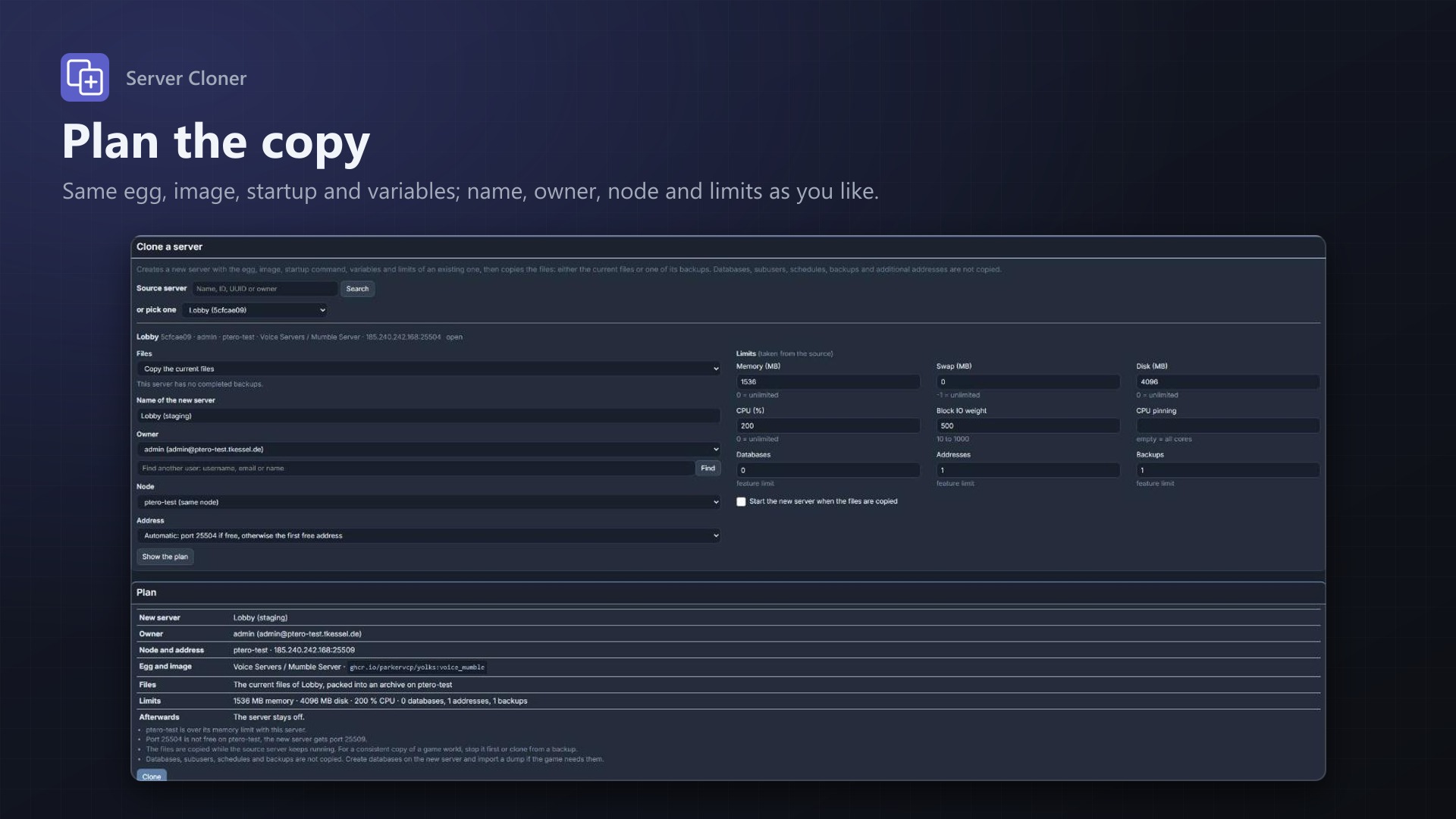
- Search the source server by name, ID, UUID or owner
- Current files or a backup: copy the files as they are now, or start from any completed backup (local or S3)
- Name, owner, node, address and limits are taken from the source and can be changed
- The source's port is kept where it is free on the node, otherwise the first free address is used
- See the plan before anything is created, then clone
Create a server from a backup archive
- Give the https address of a Wings backup (.tar.gz): a presigned S3 link, or the download link from another panel
- Pterodactyl deletes a server's backups with the server, and an archive carries no settings. So Server Cloner keeps a small hidden settings file in every server, and therefore in every backup: egg, image, startup command, variables and limits (no owner, e-mail, tokens or passwords)
- Create the new server from the archive plus that file, or choose the egg by hand; variables and limits can be applied from the file after unpacking
- Export a server's settings as JSON, or use such a file in the clone form
- Only https addresses, no private IPs; presigned links are stored encrypted and never shown in full
Copied node to node
- The new server is created with Pterodactyl's own server creation: same nest, egg, Docker image, startup command, variables, limits and feature limits
- Wings packs the files and the new server's Wings downloads and unpacks them, no detour through the panel
- Archives are deleted on both servers afterwards; optionally the new server is started
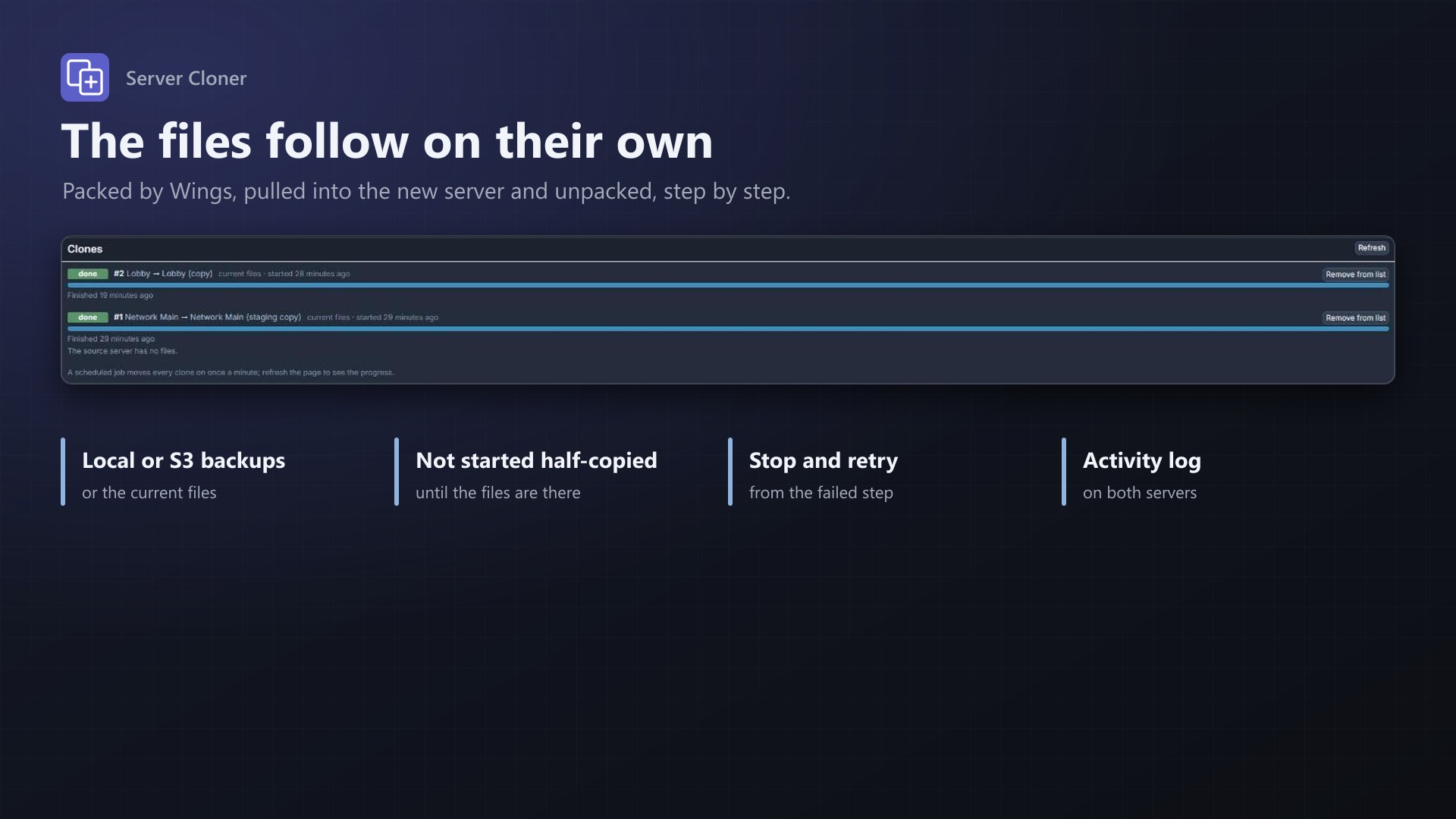
- Progress per clone with clear error messages, retry, stop, and deleting the new server with one click
- A scheduled job keeps it going when you close the page
- Activity log entries on both servers; no core files modified
Databases, subusers, schedules and backups are not copied.
Documentation
A Blueprint extension that copies a Pterodactyl server into a new one, and creates a server from a backup archive alone.
Setting up a second server like an existing one means creating it by hand with the same egg, image, startup command, variables and limits, then moving the files over. Server Cloner does both: it creates the new server from the source's settings and copies the files, either the current ones or those of one of the source's backups.
A backup archive does not contain the server's settings, and Pterodactyl deletes a server's backups with the server. So the extension also keeps a small settings file in every server, which ends up in every backup, and can create a new server from an archive and that file alone.
How it works
- Open Admin > Extensions > Server Cloner and search for the source server (name, ID, UUID or owner).
- Choose where the files come from: the current files or a backup (all completed backups of the server are listed, local and S3).
- Check the new server: name, owner (the same by default; search for another user), node (the same by default), address and limits (the source's by default). The address is picked automatically: the source's port if it is free on the node, otherwise the first free address. You can pick one yourself as well.
- Show the plan, then Clone.
The new server is created with Pterodactyl's own server creation, with the source's nest, egg, Docker image, startup command, egg variables, limits and feature limits. The egg's install script is skipped, because the files come from the source.
Then the files are copied, without going through the panel:
- Current files: Wings packs all files of the source server into an archive inside the source server. The new server's Wings downloads that archive from the source node with a one-time link (the same kind of link the file manager's download button uses) and unpacks it.
- Backup: the new server's Wings downloads the backup with the same link the backup's download button uses: from the source node for local backups, a presigned link for S3 backups. Then it is unpacked.
Finally the archives are deleted on both servers and, if you chose so, the new server is started.
A scheduled job moves every clone on once a minute, so you can close the page. The page shows each clone with its step, the download progress and any error.
While the files are copied, the new server has no disk limit (the archive and the unpacked files need room at the same time) and is marked as "restoring backup", so it can't be started half-copied. Both are put back when the clone is done or fails.
Settings file in every server
A console job (hourly, or the button Write the files now) writes .texus-server.json into the root of each installed server through Wings' file API. It is a hidden file of a few KB. Every Wings backup of the server, local or S3, contains it afterwards.
Content: format version, panel version, server name and description, egg (UUID, name, nest), Docker image, startup command, egg variables, limits (memory, swap, disk, IO, CPU, threads, OOM killer), feature limits (databases, addresses, backups), the server's ports (informational) and the creation time. Not in it: owner, e-mail address, tokens, passwords. Variables the users cannot see in the panel (not "user viewable") are written with the egg's default, not with the value an admin set.
The file is only written when the settings changed: the hash of the last write is kept in the database. Settings on the admin page:
- Keep a settings file in every server (on by default)
- Exclude eggs: servers of these eggs are skipped
- The last run, how many files were written or failed, and the servers with a failed write and the reason (for example a node that was not reachable)
Only installed servers (not installing, suspended or failed) are covered. Writing the file needs an active licence. Switching the setting off stops new writes; files already in the servers stay.
Export and use settings
On the admin page, Export settings next to a source server downloads the same JSON. Keep it with your archives if you do not want to rely on the file inside the backup.
In the clone form, Use a settings file instead of the source's settings accepts such a JSON (paste it or load the file; it is read in the browser, nothing is uploaded as a file). Egg, image, startup command, variables and limits then come from the file; the files still come from the source server. The file is kept for two hours.
Create from a backup archive
For hosts moving from another panel, or when the source server is gone. In Create from a backup archive:
- Address of the archive: a https link to a Wings backup (
.tar.gz), for example a presigned S3 link or the download link of a backup from another panel. - Settings file: paste or load the JSON, or choose the egg yourself (and name, limits and, if the egg has variables without default, the variables as
KEY=valuelines). - Name, owner (search for a user), node, address (automatic: the port from the file if free, otherwise the first free address) and whether to start the server afterwards.
- Show the plan, then Create the server.
The server is created with Pterodactyl's own server creation (the egg's install script is skipped). Then the new server's Wings downloads the archive, unpacks it and the archive is deleted, with the same steps, progress, retry and stop as a normal clone.
Without a settings file: the server gets the egg's image, startup command and default variables. If the unpacked files contain .texus-server.json, the finished clone shows Apply variables and limits from the file. It sets the variables (only those the egg has) and the limits from the file. It changes nothing else: files, egg, image, startup command and address stay, nothing is deleted. The file must name the same egg as the server, otherwise nothing is changed. An archive made before the extension kept the file has none: then use the exported JSON or enter the values by hand.
Safety of the address
- Only https addresses; no user name or password in the address; at most 2048 characters; the fragment is removed.
- Addresses that are or resolve to private, loopback, link-local or reserved IPs are refused by the panel (and by Wings as well). The check is repeated right before Wings is asked.
- The address is stored encrypted and removed when the clone is done. The admin page and the log never show the query string (presigned links carry the signature there): only host and the start of the path. Error messages are cleaned the same way.
When something goes wrong
Each step has a clear error message on the page. A failed clone can be:
- Retried from the step that failed (a broken download starts again),
- Removed from the list: the new server stays as it is, leftover archives are deleted,
- or the new server can be deleted with one click. Nothing is ever deleted automatically.
A running clone can be stopped.
Timeouts: the new server must be set up by Wings within 15 minutes, and the download must make progress at least every 10 minutes. Packing and unpacking each may take up to 15 minutes (the limit Pterodactyl gives Wings for these); for very large servers, clone from a backup.
Good to know
- Not copied: databases, subusers, schedules, backups, additional addresses and mounts. Create the databases on the new server and import a dump if the game needs them.
- The current files are copied while the source keeps running. For a consistent copy of a game world, stop the source first or clone from a backup.
- When cloning the current files, the source server needs free disk space for the archive (it counts towards its disk limit until the clone has finished).
- The new server's Wings downloads from the source node's address (as configured in the panel) or from S3. Wings refuses downloads from addresses that resolve to private IPs, so the nodes need public addresses that they can reach each other on, and remote downloads must not be disabled in the Wings config (
api.disable_remote_download). - If the panel sends "server installed" emails, the owner gets one when the new server is set up, shortly before the files arrive.
- The activity log of both servers shows the clone (
server:texusclone.*events). - No core files are modified.
Requirements
- Pterodactyl Panel 1.15.x with Wings 1.11 or newer on all nodes (the new server's node must be able to download the archive: remote downloads on, internet access)
- Blueprint (beta-2026-08 or newer)
- The panel's cron job (
schedule:runevery minute), as Pterodactyl needs it anyway - Nodes that can download from each other over their configured addresses (and from S3 for S3 backups)
- A licence key from texus-addons.de, free with your purchase, for one panel
- Outgoing HTTPS from the panel to texus-addons.de
Installation
- Upload
texusclone.blueprintto/var/www/pterodactyl - Run
blueprint -install texusclone - Enter the licence key under Admin > Extensions > Server Cloner
Changelog
0.2.0
- Create a server from a backup archive alone: https address of a Wings backup (.tar.gz), settings file or manual egg, owner, node, address and limits; the new server's Wings downloads, unpacks and deletes the archive. Same progress, retry and stop as a clone.
- Settings file in every server (
.texus-server.json, hidden, a few KB): written hourly when the settings changed, so every Wings backup carries egg, image, startup command, variables and limits. No owner, e-mail, tokens or passwords. Can be switched off, eggs can be excluded, the last run and failed writes are shown. - Export settings of a server as JSON, and use such a file in the clone form instead of the source's settings.
- After unpacking an archive created without a settings file, a button applies the variables and limits from the file found in it.
- Address checks: https only, no private or reserved IPs, length limit; presigned links are stored encrypted and never shown or logged in full.
0.1.0
- First release: clone a server into a new one with the same egg, image, startup command, variables and limits, with its current files or the files of one of its backups (local or S3). Choose name, owner, node, address and limits, see the plan, then clone. The files are copied node to node by Wings; progress, error messages, retry, stop and deleting the new server on the admin page.
- Update notice: when a newer version is out, Admin > Extensions and the licence box on the admin page show it, with what is new. With the optional update helper (set up once as root), the update runs with one click after a backup of the panel files and the database.
Licence and download
One purchase = one licence = one panel. The licence is bound to one panel domain and the server it runs on. Subdomains count separately. You can move the licence at any time in your account.
After buying on sourceXchange or BuiltByBit, sign in here with your email address (BuiltByBit: redeem your activation code). You download the extension with the licence key built in, and every new version from your account.
Questions before buying? Ask on our Discord support server or at support@texus-addons.de.
Related
Schedules Plus
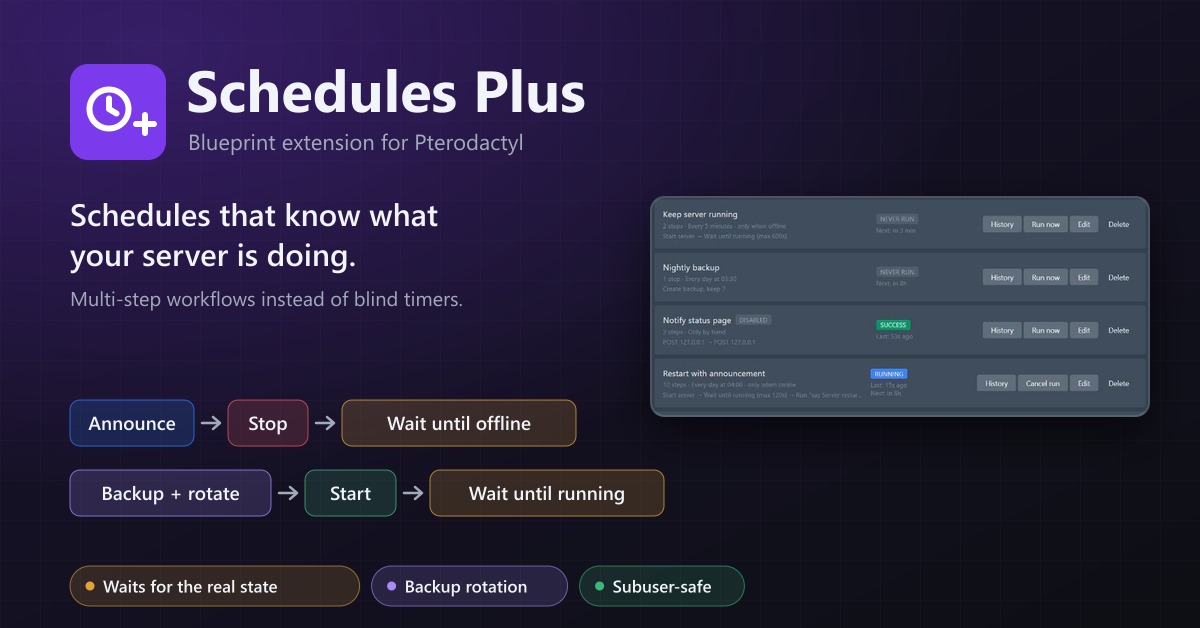
Multi-step server workflows that wait for the real server state: announce, stop, back up with rotation, start again.
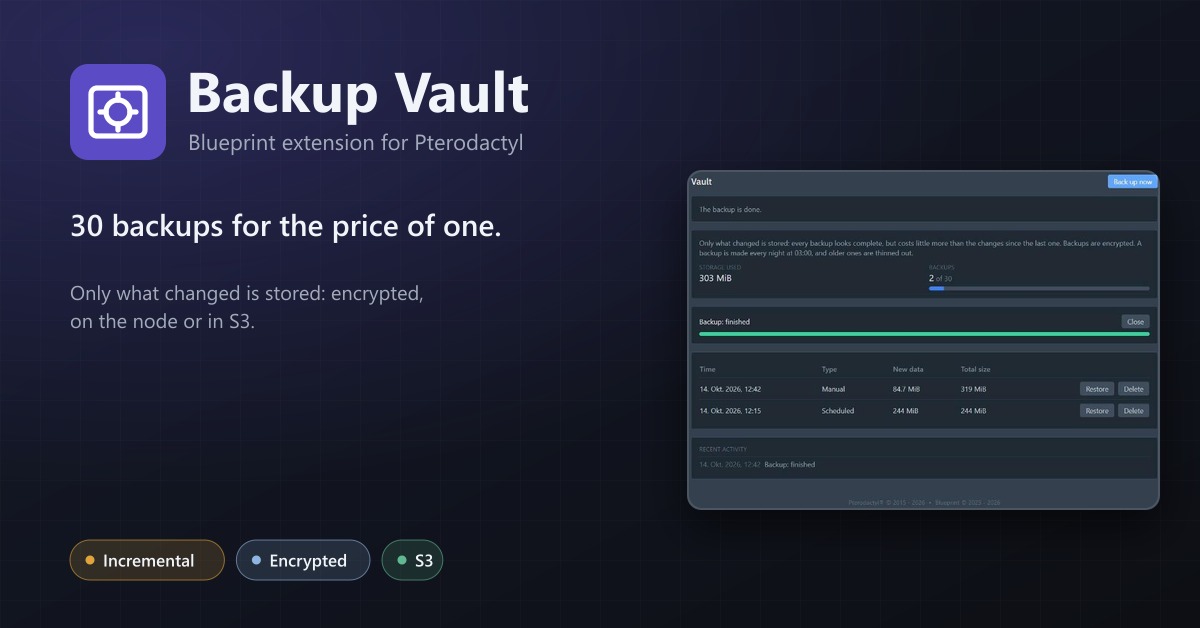
Backup Vault
Incremental, encrypted backups with restic: only changes are stored, on the node or in S3, with restore and retention.
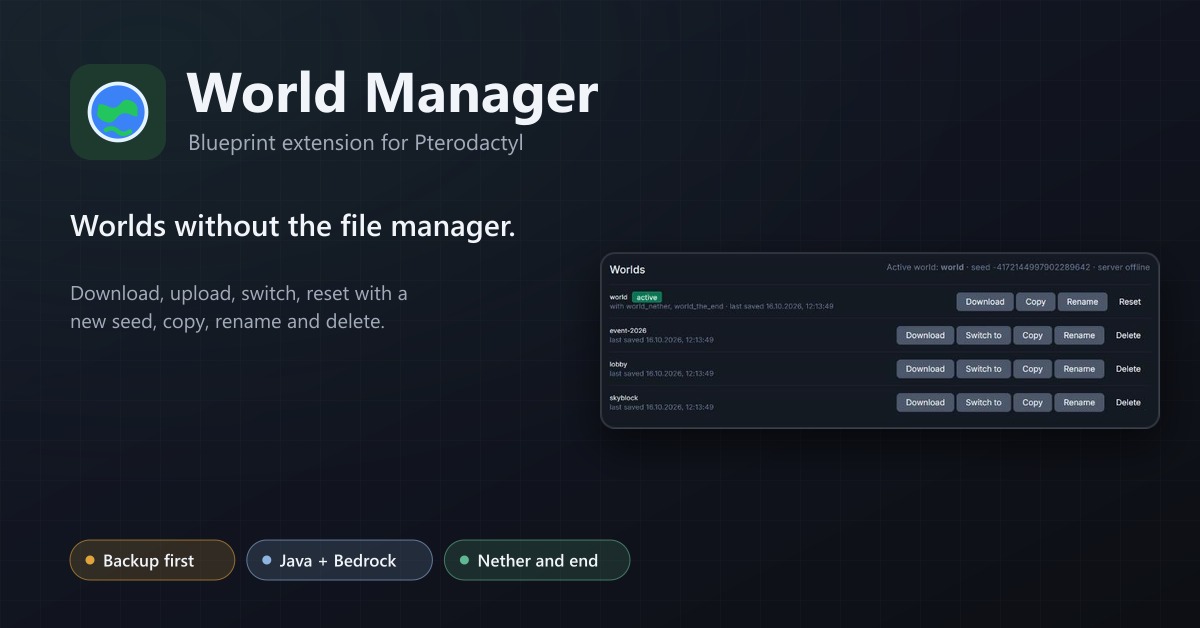
World Manager
A Worlds tab for Minecraft servers: download, upload, switch, reset with a new seed, copy, rename and delete worlds, with a backup first.