 texus Addons und Themes
Backup Vault
Incremental, encrypted backups with restic: only changes are stored, on the node or in S3, with restore and retention.
29,99 €
- Version 0.1.0, updated 14 October 2026
- For Pterodactyl Panel 1.15.x with Blueprint
- No core files modified, installs and removes with Blueprint
- One licence for one panel, new versions included
Screenshots
Features
Pterodactyl's built-in backups are full archives: an 18 GB server needs 18 GB for every backup, and thirty nightly backups fill over 500 GB. Backup Vault stores only what changed. Thirty daily backups cost little more than one, every backup still restores on its own, and everything is encrypted. Keep them in S3 instead of on the node's disk.
For your customers
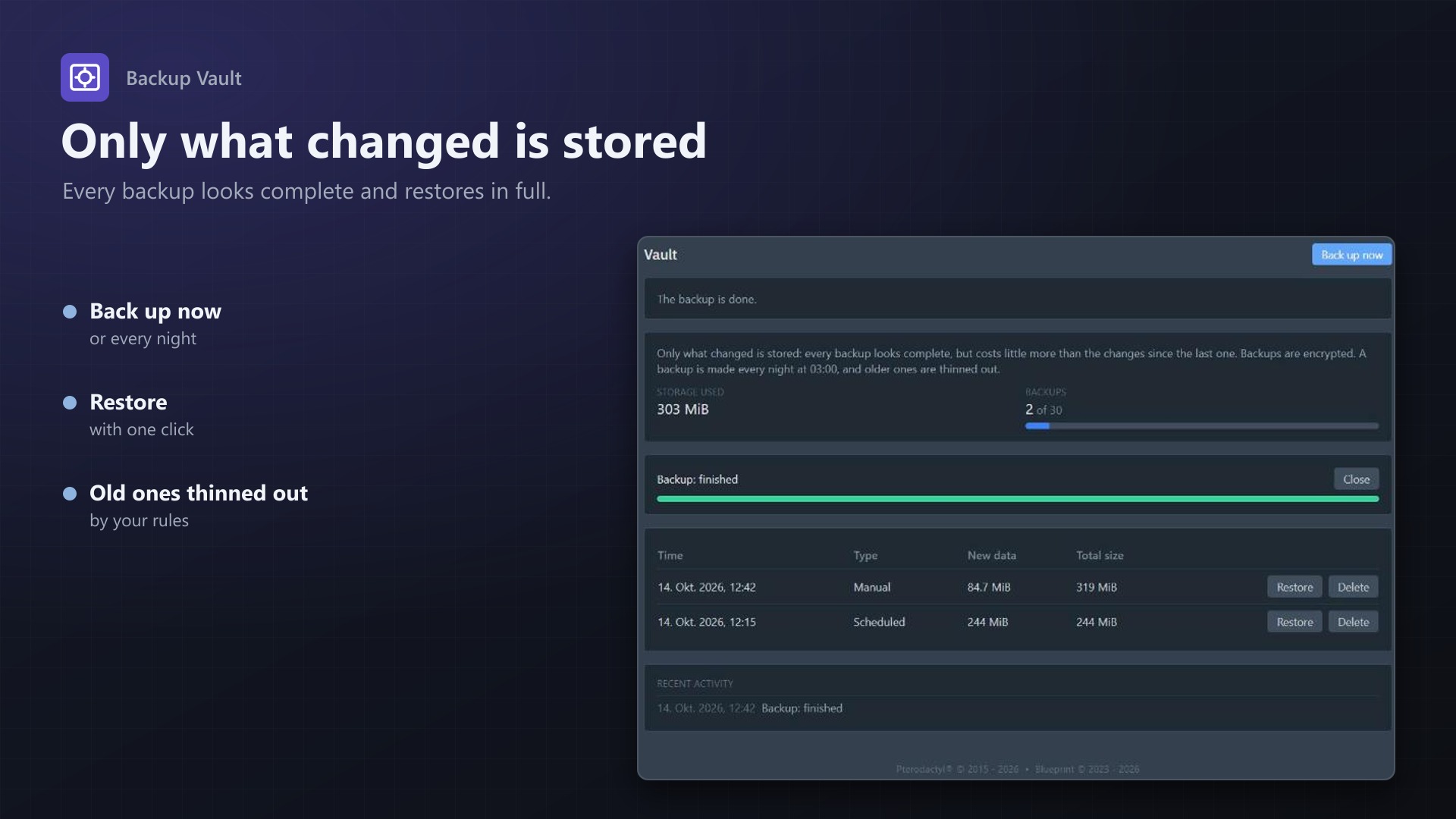
- A Vault tab on the server page: all backups with time, new data and total size
- Back up now with live progress
- One-click restore: the server is stopped, the backup is restored with progress, and the server can start again by itself
- Delete backups, see usage bars against your limits
- Uses the panel's own backup permissions (read, create, restore, delete)
For you
- Storage: S3 compatible (AWS, Backblaze, MinIO, Wasabi, ...), a folder on the node, SFTP or a restic REST server
- Nightly schedule with retention: keep the last, daily, weekly and monthly backups, space freed automatically
- Limits per server: number of backups and storage in GiB
- Choose which nests and eggs are covered, exclude files such as logs
- Built on restic: encrypted, deduplicated, proven. A small agent (one Python file, no dependencies) runs it on each Wings node
- Every server has its own repository and random password; export the passwords for disaster recovery and open any backup with plain restic, even without the panel
- Without a licence customers can still see and delete their backups, so nobody is locked out of their data
Documentation
A Blueprint extension for incremental, deduplicated, encrypted server backups that can live in S3.
Pterodactyl's built-in backups are full tar.gz archives: an 18 GB server needs 18 GB for every backup, and thirty nightly backups need over 500 GB. Backup Vault stores only what changed since the last backup. Thirty daily backups of the same server cost little more than one, every backup still looks complete and can be restored on its own, and everything is encrypted. The backups can go to S3 compatible storage, a folder, an SFTP server or a restic REST server instead of filling the node's disk.
Under the hood it uses restic, a mature open-source backup tool. A small agent on each Wings node runs restic for the panel.
What customers see
A Vault tab on the server page:
- the list of backups with time, type (manual or scheduled), new data and total size
- Back up now with live progress
- Restore: the panel stops the server, restores the chosen backup over the server's files, shows the progress and, if wanted, starts the server again
- Delete a backup
- usage bars for the storage and the number of backups against your limits
The panel's own backup permissions are reused: backup.read to see the tab, backup.create to back up, backup.restore to restore, backup.delete to delete. The panel's own Backups tab keeps working as before.
What you set up
Under Admin > Extensions > Backup Vault:
| Part | What it does |
|---|---|
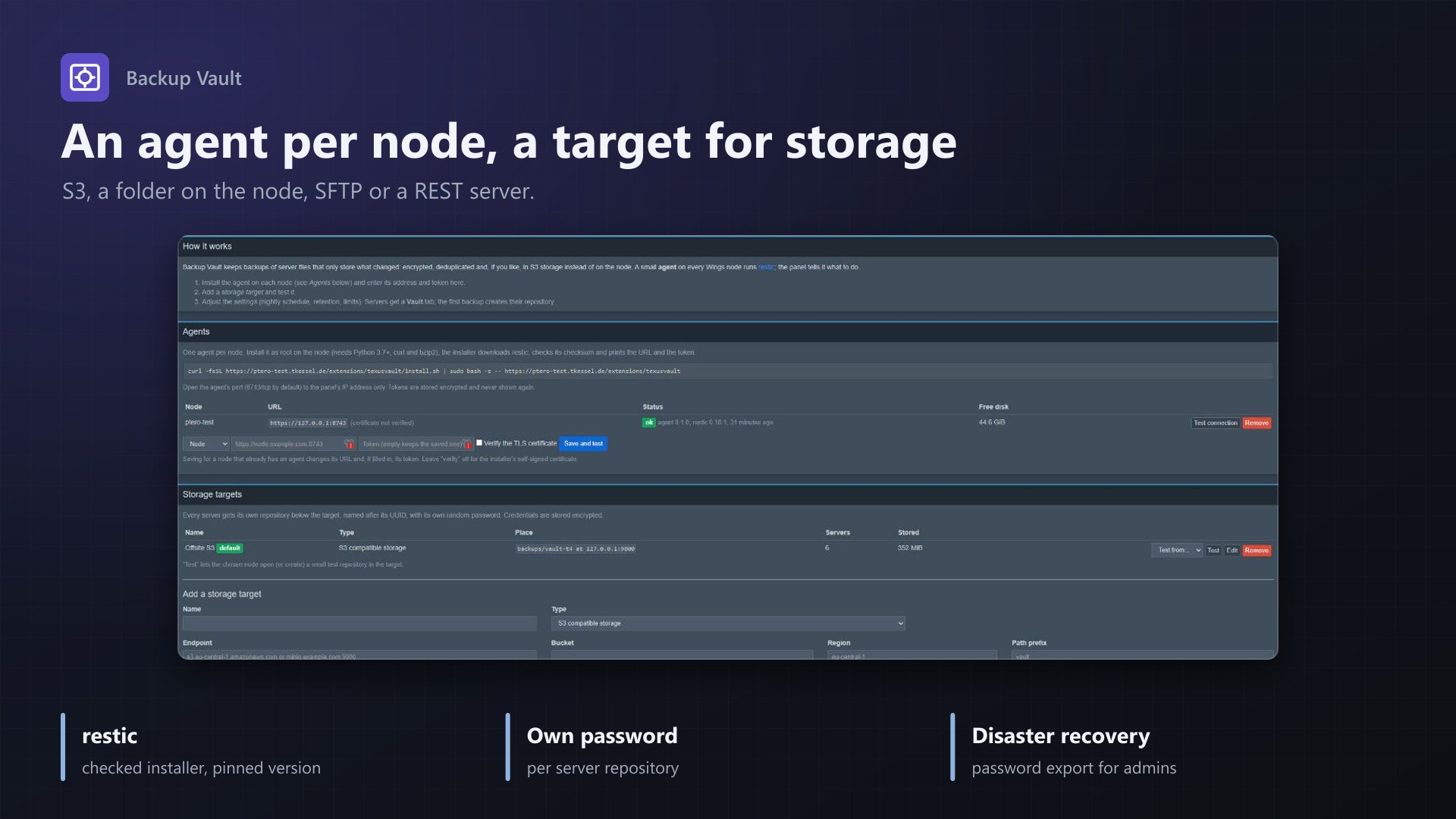
| Agents | One per node: URL and token of the agent, with a connection test. Tokens are stored encrypted. |
| Storage targets | S3 compatible storage (endpoint, bucket, region, access key, secret key, path prefix), a folder on the node, an SFTP server (private key) or a restic REST server. Keys are stored encrypted. "Test" lets a node open or create a test repository there. |
| Schedule | A nightly backup at a time you choose. A job that runs every five minutes starts the due backups a few at a time. |
| Retention | Keep the last N, daily, weekly and monthly scheduled backups; older ones are removed and the space is freed (prune). Manual backups are never removed by the retention. |
| Limits | Backups per server (a customer cannot start a manual backup above it) and storage per server in GiB. Scheduled backups always run. |
| Which servers | All servers on nodes with an agent, or only the nests and eggs you tick. |
| Excluded files | restic exclude patterns for all backups, one per line. |
| Repositories | Every server's repository with its size and last backup, "Show password" and an export of all passwords. |
How it works
Every server gets its own restic repository in the storage target, below a folder (or bucket prefix) named after the server's UUID. The repository has its own random password.
- Backup. The panel sends the agent the server UUID, the repository and its password. The agent runs
restic backupon the server's volume folder with low priority (nice,ionice) and reports the progress. The server can keep running: restic reads the files as they are. Files that change while they are read can be inconsistent, as with any file level backup; stop the server first when you need a perfectly consistent copy. - Snapshots. The panel reads the list of snapshots from the agent after every job and keeps a copy, so the page opens quickly.
- Restore. The page stops the server with the panel's normal power API and waits until it is offline. The panel checks again that the server is offline, then the agent empties the server's volume folder (only that folder), runs
restic restoreinto it and reports the progress. Optionally the page starts the server again. - Retention. After every scheduled backup the panel asks the agent to apply your keep rules to the scheduled backups of that server and to prune.
- Delete. Deleting a backup removes its snapshot and, with "free the space" on, prunes the repository.
The agent keeps no state: the repository, its password and the storage keys come with every request from the panel and only exist in the environment of the restic process. After an agent restart, running jobs are marked as failed by the panel and can be started again.
Installing the agent on a node
Needs root on the Wings node, Python 3.7 or newer, curl, bzip2 and systemd.
- Install the extension on the panel first (see below), so the agent files are available.
- On the node, as root, run the installer. It is served by your panel: ``
curl -fsSL https://YOUR-PANEL/extensions/texusvault/install.sh | sudo bash -s -- https://YOUR-PANEL/extensions/texusvault`Alternatively copyinstall.sh,texus-vault-agent.pyandtexus-vault-agent.service(theagentfolder of the extension) to the node and runsudo bash install.sh`. - The installer downloads restic (a pinned release,
0.18.1, checked against theSHA256SUMSfile of the release), installs the agent to/usr/local/lib/texus-vault/, creates/etc/texus-vault/agent.confwith a random token, creates a self-signed certificate, installs and starts the servicetexus-vault-agent, and prints the URL and the token. - In the panel, under Agents, choose the node, enter the URL and the token and press Save and test. Leave "Verify the TLS certificate" off for the self-signed certificate, or put your own certificate into
tls_cert/tls_keyinagent.confand turn it on. - Repeat for every node.
Options for the installer (environment variables): PORT (8743), LISTEN (0.0.0.0), VOLUMES_DIR (/var/lib/pterodactyl/volumes), PUBLIC_HOST (the name or address the panel uses), TLS=0 for plain HTTP, RESTIC_VERSION. Running the installer again updates the agent and restic and keeps the token.
Firewall. The agent listens on one TCP port (8743 by default). Allow it only from the panel's IP address, for example ufw allow from PANEL-IP to any port 8743 proto tcp. The agent runs restic as root and talks to the storage with credentials the panel sends, so it must not be reachable from the internet. Without TLS (TLS=0) the token and the storage keys travel unencrypted; only do that on a private network or behind a TLS proxy.
/etc/texus-vault/agent.conf (JSON): listen_host, listen_port, token, volumes_dir, max_jobs (jobs that run at the same time on this node, default 2), restic (path), cache_dir, tls_cert, tls_key, local_roots (list of folders that "folder" targets may use; empty = any folder outside the volumes), limit_upload_kib (upload limit per restic process, 0 = none). Restart with systemctl restart texus-vault-agent after a change. Logs: journalctl -u texus-vault-agent; they never contain secrets.
What the agent allows
- The server UUID must match a strict UUID pattern, and the resolved folder must be a real folder directly inside
volumes_dir. Nothing else is touched. Restoring with replace only empties that folder; symbolic links inside it are removed, never followed. - restic is started without a shell. Secrets are passed in its environment only. Only the storage variables for S3 and REST servers are accepted, nothing like
LD_PRELOAD. - The token is compared in constant time. Requests are limited to 1 MB.
- A local repository must not be inside the server volumes.
Disaster recovery
The repository passwords are random and stored, encrypted, in the panel's database with the panel's APP_KEY.
- Losing the
APP_KEYmeans losing the backups. Without it the passwords cannot be decrypted, and restic encryption cannot be broken. Keep a copy of your.envsomewhere safe, as you must for any Laravel app. - Use Export all passwords in the Repositories box now and then and keep the file offline. A single password can be shown with Show password. Both are written to the activity log.
- With a repository location and password you can open a backup without the panel, on any machine with restic: ``
export RESTIC_REPOSITORY='s3:https://s3.example.com/bucket/vault/SERVER-UUID' export RESTIC_PASSWORD='the password' export AWS_ACCESS_KEY_ID=... AWS_SECRET_ACCESS_KEY=... restic snapshots restic restore latest --target /srv/restore`` The location is shown next to the password. The storage keys stay in the target's settings, so keep a copy of them as well. - Repositories stay in the storage when a server is deleted; the panel keeps the password so you can still read them. Delete old repositories in the storage yourself.
Limits and good to know
- Restore needs the server to be offline. The page stops it for the customer if they may stop it; otherwise they have to stop it first.
- A restore with "replace" removes everything in the server's folder first. If the restore fails halfway (the storage goes offline, the disk is full) the server's files are incomplete until it is run again. Keep the server stopped and try again; the backup stays untouched.
- One job per server at a time, and at most
max_jobsper node (default 2). Scheduled backups wait for a free slot; a customer who asks for a backup on a busy node is told to try again soon. - The first backup of a server uploads everything; later ones only what changed. The size shown per backup is the new data it added. "Storage used" is the repository's real size, refreshed after clean-ups and daily.
- The time of the schedule is the panel's time zone (
APP_TIMEZONE). - Backups of running servers are file-level copies: databases and worlds that are written while the backup runs may be inconsistent, as with the panel's own backups. This extension does not send commands to the server.
- A repository belongs to the target it was created in. Changing a target's place (bucket, path, host) after backups exist makes them unreachable; change keys only.
- SFTP targets need a private key without a passphrase. The host key is trusted on first use and stored on the node in
/etc/texus-vault/known_hosts. - Restic needs some memory and a cache folder (
/var/cache/texus-vault). Large repositories with many files use more of both while backing up and pruning. - The agent keeps no state, so job progress is lost when it restarts. Backups and repositories are not affected.
Requirements
- Pterodactyl Panel 1.15.x with Wings 1.11 or newer
- Blueprint (beta-2026-08 or newer)
- The panel's cron job (
schedule:runevery minute) - On every node: root access, systemd, Python 3.7+, curl, bzip2, and outgoing HTTPS to GitHub for the installer
- The panel must reach the agent's port on each node
- A storage target: S3 compatible storage, a folder, an SFTP server or a restic REST server
- A licence key from texus-addons.de, free with your purchase, for one panel
- Outgoing HTTPS from the panel to texus-addons.de
Installation
- Upload
texusvault.blueprintto/var/www/pterodactyl - Run
blueprint -install texusvault - Enter the licence key under Admin > Extensions > Backup Vault
- Install the agent on your nodes (above), add a storage target, check the settings
Changelog
0.1.0
- First release: incremental, deduplicated and encrypted backups of server files with restic, stored in S3 compatible storage, a folder on the node, an SFTP server or a restic REST server. A small agent on each Wings node runs restic. Vault tab on the server page with snapshots, "Back up now" with live progress, restore (stops the server, restores, optionally starts it again) and delete. Nightly schedule with retention (keep last, daily, weekly, monthly), per-server snapshot and storage limits, covered eggs, and an admin export of repository passwords for disaster recovery.
Licence and download
One purchase = one licence = one panel. The licence is bound to one panel domain and the server it runs on. Subdomains count separately. You can move the licence at any time in your account.
After buying on sourceXchange or BuiltByBit, sign in here with your email address (BuiltByBit: redeem your activation code). You download the extension with the licence key built in, and every new version from your account.
Questions before buying? Ask on our Discord support server or at support@texus-addons.de.
Related
Schedules Plus
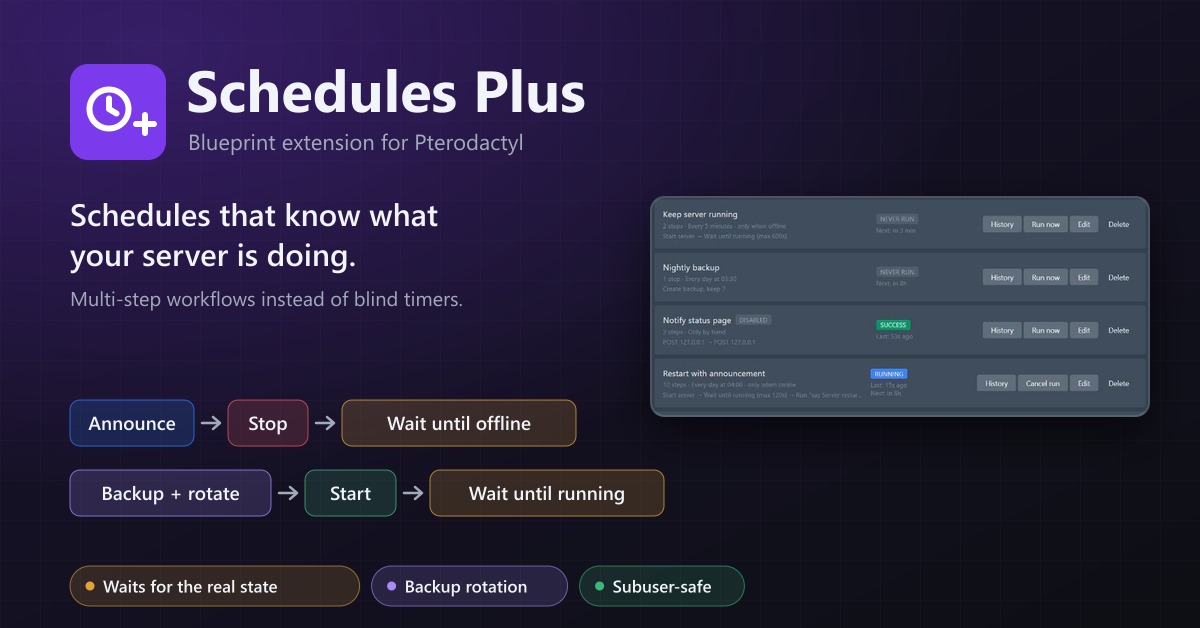
Multi-step server workflows that wait for the real server state: announce, stop, back up with rotation, start again.
Server Cloner
Copy a server with its settings and files, or create a new server from one of its backups.
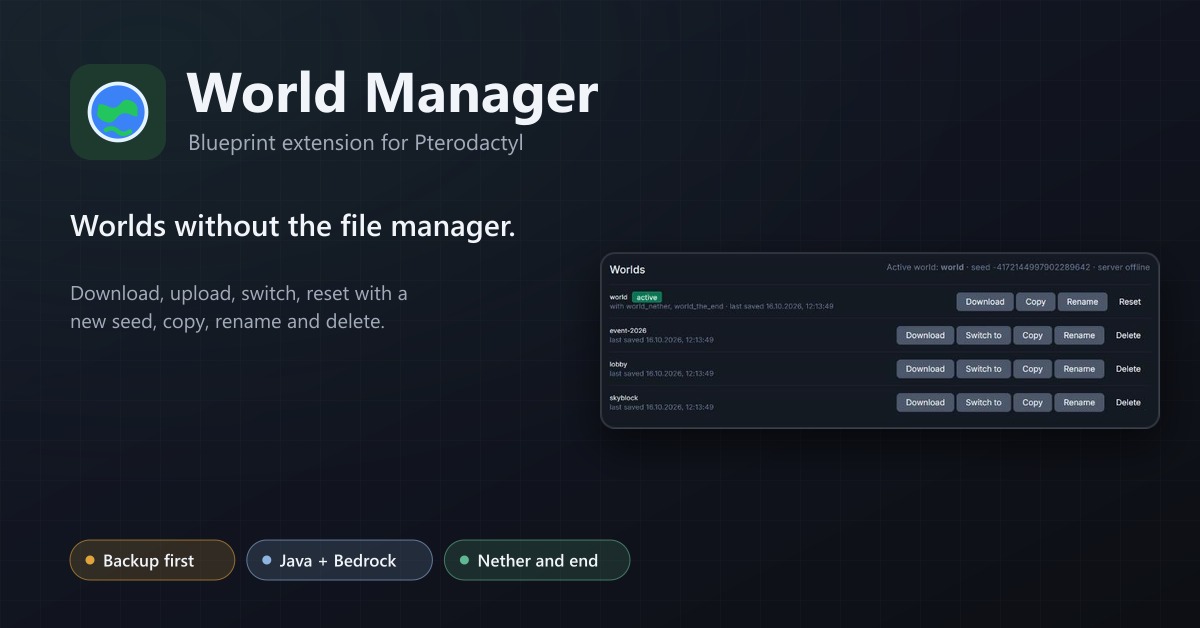
World Manager
A Worlds tab for Minecraft servers: download, upload, switch, reset with a new seed, copy, rename and delete worlds, with a backup first.