 texus Addons und Themes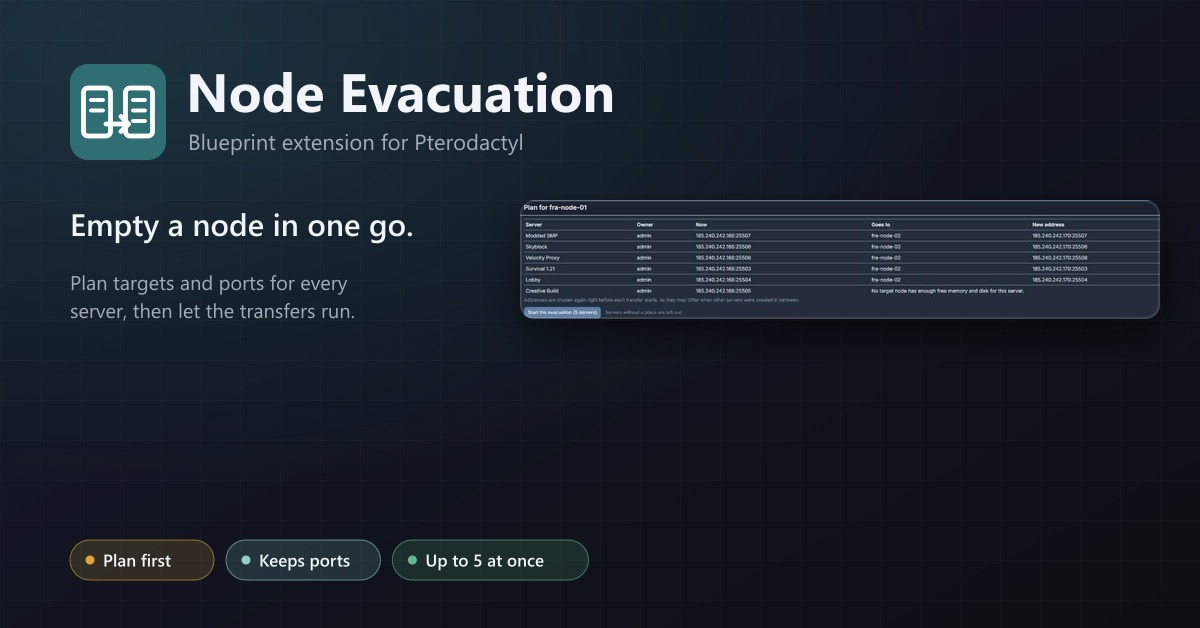
Node Evacuation
Empty a node in one go: plan targets and ports, then transfer every server with progress, retries and a stop button.
12,99 €
- Version 0.1.2, updated 10 October 2026
- For Pterodactyl Panel 1.15.x with Blueprint
- No core files modified, installs and removes with Blueprint
- One licence for one panel, new versions included
Screenshots
Features
Pterodactyl transfers one server at a time: open the server, pick a node, pick an address, wait, repeat. Replacing a machine, moving to a new data centre or freeing a node for maintenance means doing that for every single server. Node Evacuation plans the whole node and runs the transfers for you.
Plan first
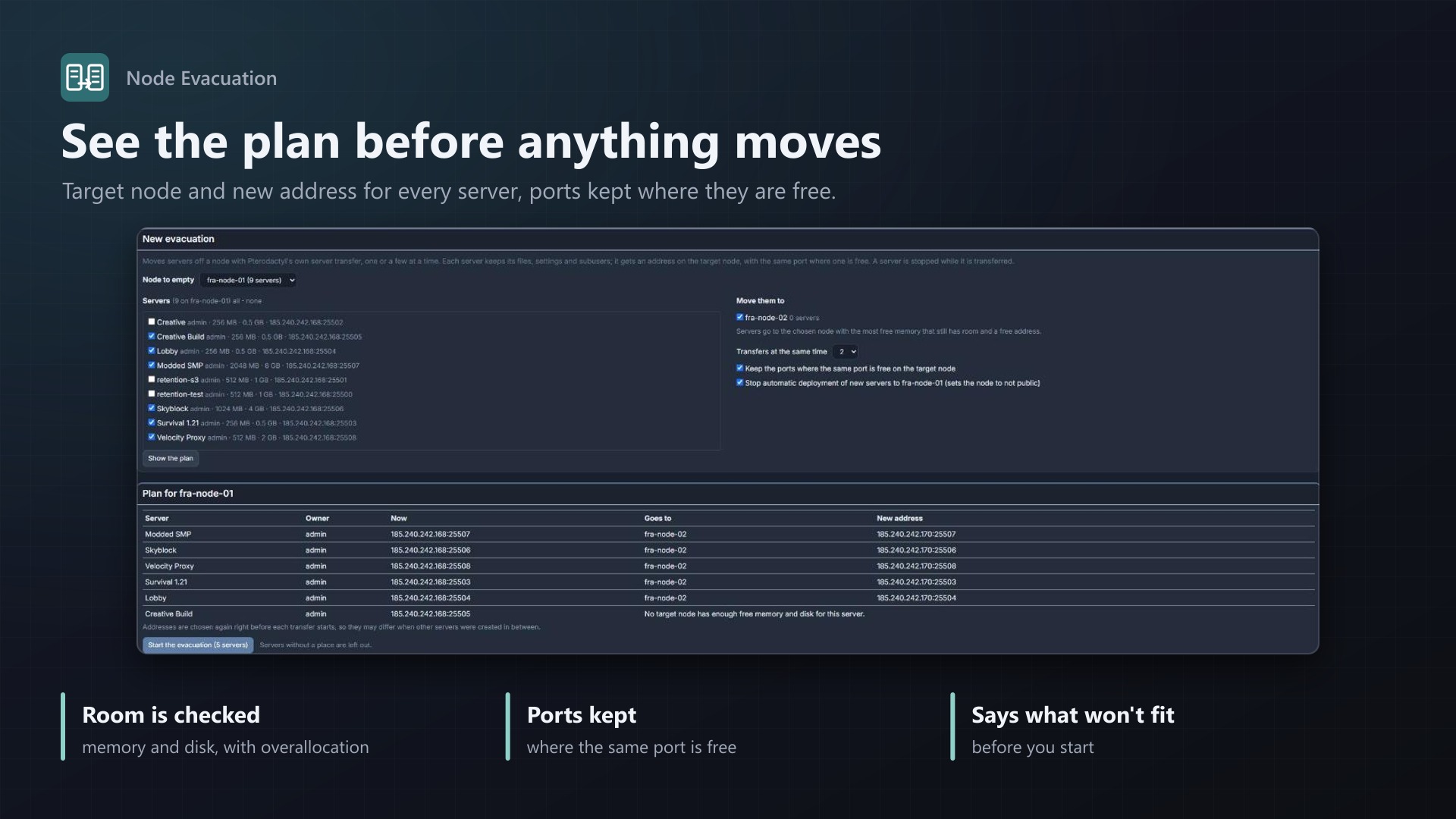
- Choose the node to empty, the servers (all by default) and the nodes they may go to
- See the plan before anything moves: target node and new address for every server
- Servers go to the chosen node with the most free memory that still has room (memory and disk limits, overallocation included) and a free address
- Keeps the ports where the same port is free on the target node, and tells you where it can't
- Additional addresses move along where free ones exist
Then let it run
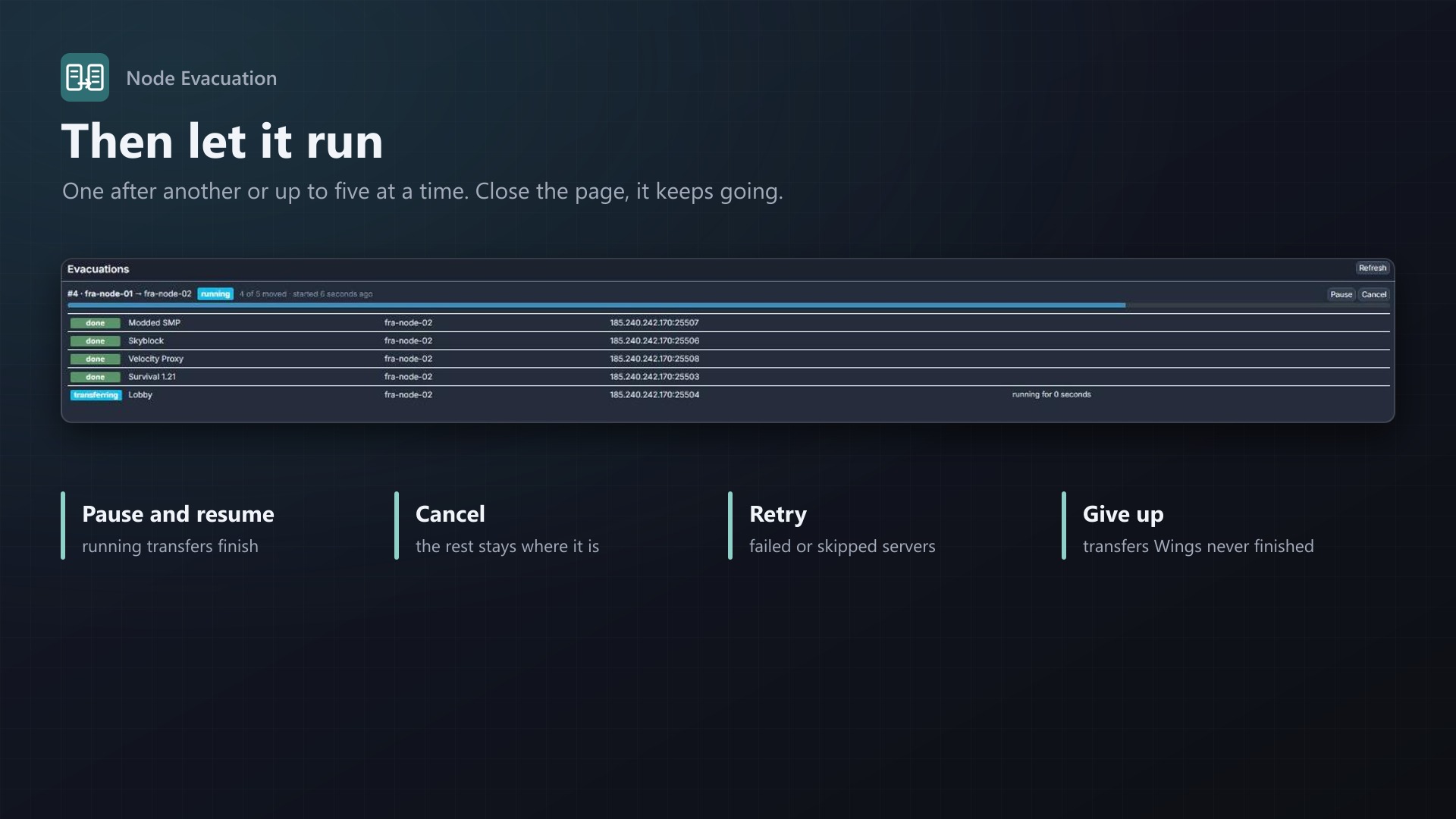
- One transfer after another, or up to five at a time
- Progress per server: queued, transferring, done, failed, skipped, with the new node and address
- A scheduled job starts the next server as soon as a slot is free, so you can close the page
- Pause, resume, cancel, retry failed servers, give up transfers that Wings never finished
- Optionally stops automatic deployment of new servers to the node you are emptying
- Uses Pterodactyl's own server transfer, the same as the "Transfer" button; no core files modified
Documentation
A Blueprint extension that empties a Pterodactyl node in one go.
Pterodactyl can transfer one server at a time: open the server, pick a node, pick an address, wait, repeat. Replacing a machine, moving to a new data centre or freeing a node for maintenance means doing that for every server. Node Evacuation plans all of it and runs the transfers for you.
How it works
- Open Admin > Extensions > Node Evacuation and choose the node to empty.
- Tick the servers (all by default) and the nodes they may go to.
- Show the plan: every server gets a target node and an address. Servers go to the chosen node with the most free memory that still has room for them (memory and disk limits, including overallocation) and a free address. With "keep the ports", an address with the server's current port is preferred; otherwise the first free one is used. Additional addresses are moved as well where free ones exist.
- Start. The servers are transferred one after another, or up to five at a time. Each transfer is the same as the "Transfer" button on a server's admin page: Wings sends the server's files to the new node, the panel then switches the server over and frees the old addresses.
While it runs, the page shows every server with its state (queued, transferring, done, failed, skipped), the new node and address. A scheduled job checks every minute and starts the next server as soon as a slot is free, so you can close the page.
Controls
- Pause: running transfers finish, no new ones start. Resume continues.
- Cancel: servers that have not started stay where they are.
- Retry the others: failed, skipped and cancelled servers are queued again.
- Give up: for a transfer that is still "transferring" after 30 minutes and that Wings is no longer working on (for example after a Wings restart). It is marked as failed and the addresses reserved on the target node are freed, the same as when Wings reports a failure.
- Optionally, the node being emptied is set to not public, so no new servers are deployed to it automatically.
Before each transfer, the target and addresses are chosen again, so servers created in the meantime are taken into account. A server that is installing, restoring a backup or already being transferred is skipped and can be retried later.
Good to know
- A server is offline while it is transferred. How long depends on its size and the network between the nodes.
- Server owners see the new address on their server page. When the port can't be kept, the plan says so before you start.
- Transfers need both nodes online and able to reach each other (the source node uploads to the target node's Wings).
- Everything is done by Pterodactyl's own transfer; no core files are modified.
Requirements
- Pterodactyl Panel 1.15.x with Wings 1.11 or newer on all nodes
- Blueprint (beta-2026-08 or newer)
- The panel's cron job (
schedule:runevery minute), as Pterodactyl needs it anyway - A licence key from texus-addons.de, free with your purchase, for one panel
- Outgoing HTTPS from the panel to texus-addons.de
Installation
- Upload
texusevacuate.blueprintto/var/www/pterodactyl - Run
blueprint -install texusevacuate - Enter the licence key under Admin > Extensions > Node Evacuation
Changelog
0.1.2 (2026-10-11)
- The update notice also works in the package from the licence site and the marketplaces; in the previous version it stayed hidden there.
0.1.1 (2026-10-11)
- Update notice: when a newer version is out, Admin > Extensions and the licence box on the admin page show it, with what is new. With the optional update helper (set up once as root), the update runs with one click after a backup of the panel files and the database.
0.1.0
- First release: plan the evacuation of a node (target nodes, ports, room), then transfer the servers one after another or a few at a time with Pterodactyl's own server transfer. Progress per server, pause, resume, cancel, retry, and "give up" for transfers that Wings never finished. Optionally stops automatic deployment to the node that is being emptied.
Licence and download
One purchase = one licence = one panel. The licence is bound to one panel domain and the server it runs on. Subdomains count separately. You can move the licence at any time in your account.
After buying on sourceXchange or BuiltByBit, sign in here with your email address (BuiltByBit: redeem your activation code). You download the extension with the licence key built in, and every new version from your account.
Questions before buying? Ask on our Discord support server or at support@texus-addons.de.
Related
Egg Store
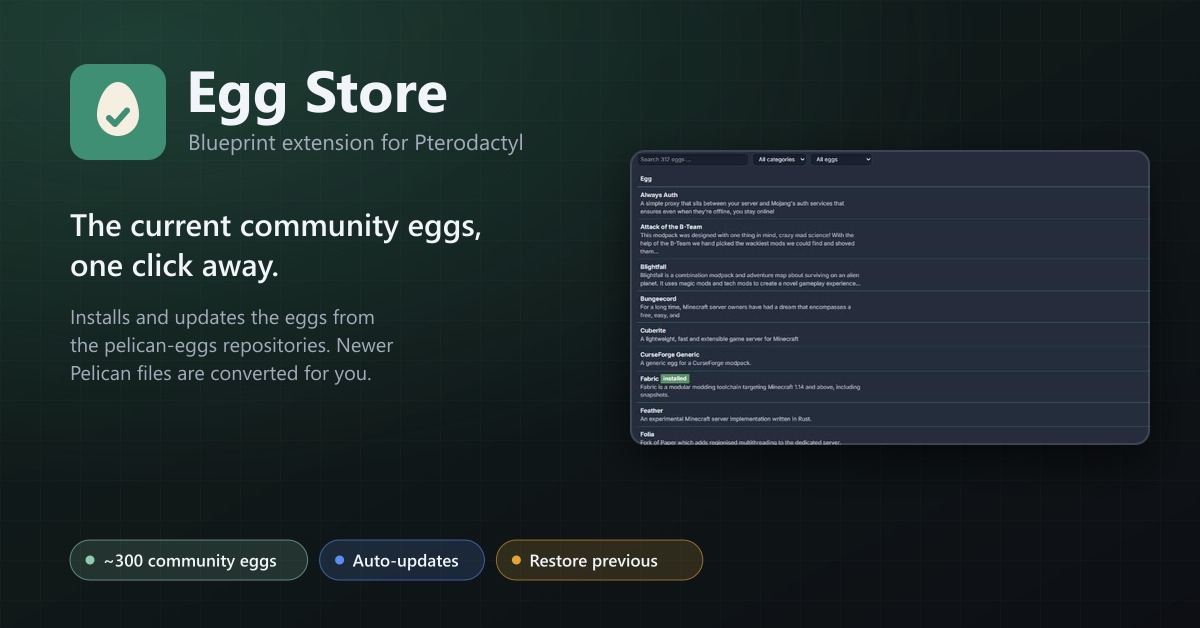
Install and update about 300 community eggs from the pelican-eggs repositories with one click. Pelican eggs are converted automatically.
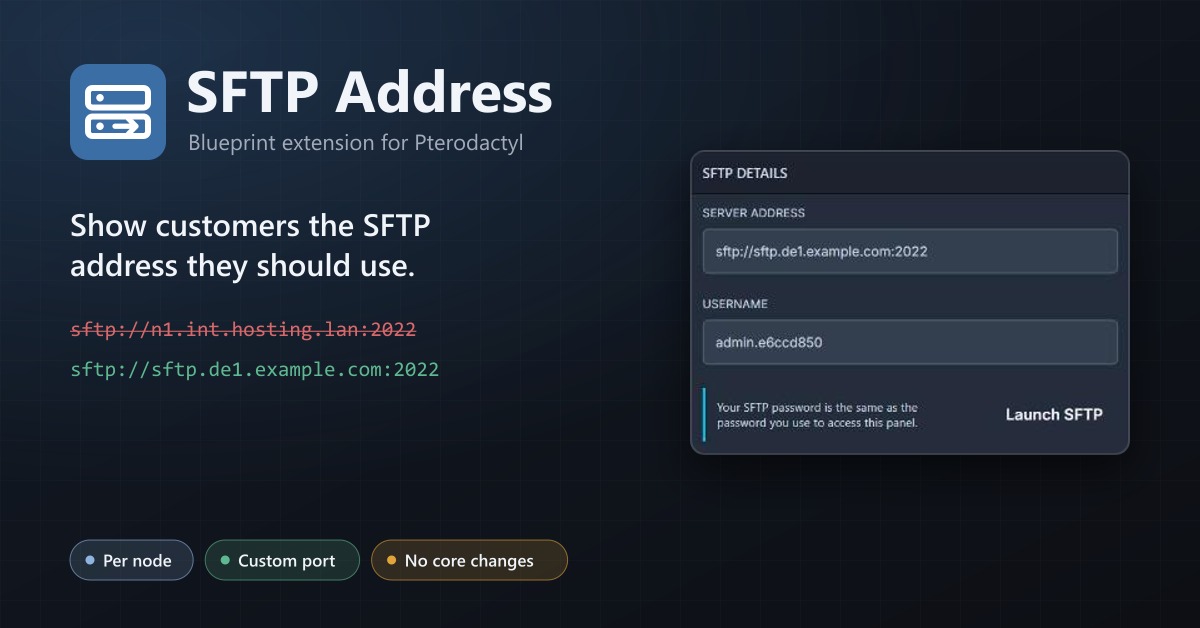
SFTP Address
Show your users a public SFTP address per node, like sftp.de1.example.com, instead of the node's internal address.
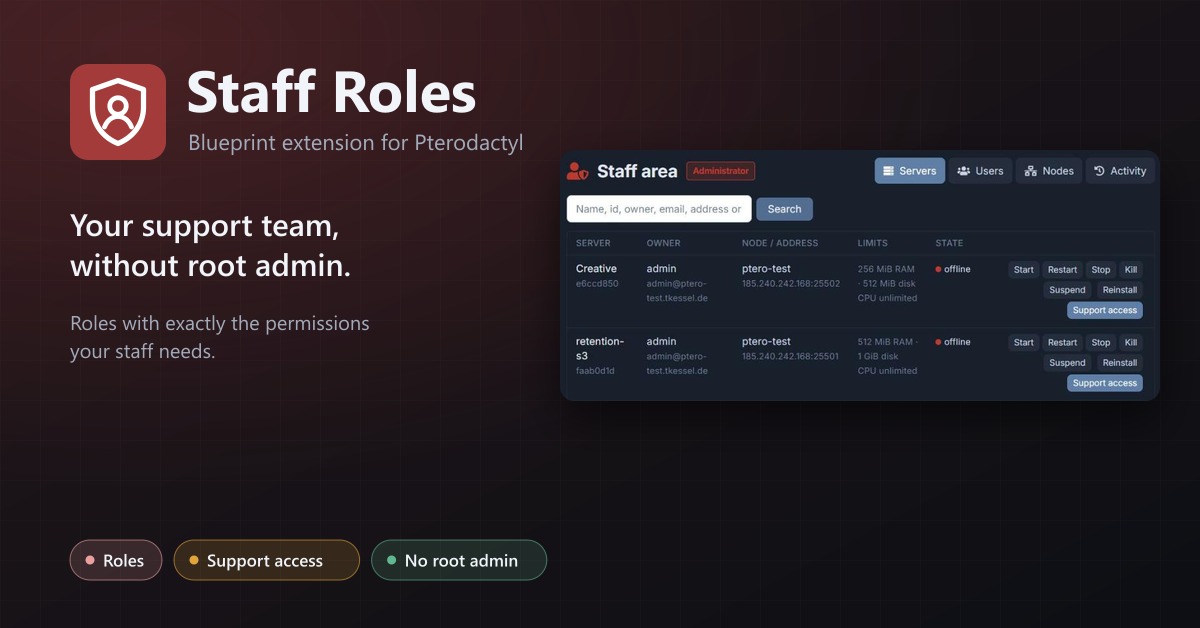
Staff Roles
Staff roles without root admin: permissions per role, a staff area, and time-limited support access to servers.