 texus Addons und Themes
File Explorer
A file explorer with folder tree and editor tabs for every server: open several files at once, save with Ctrl+S, move by drag and drop.
9,99 €
- Version 0.3.2, updated 10 October 2026
- For Pterodactyl Panel 1.15.x with Blueprint
- No core files modified, installs and removes with Blueprint
- One licence for one panel, new versions included
Screenshots
Features
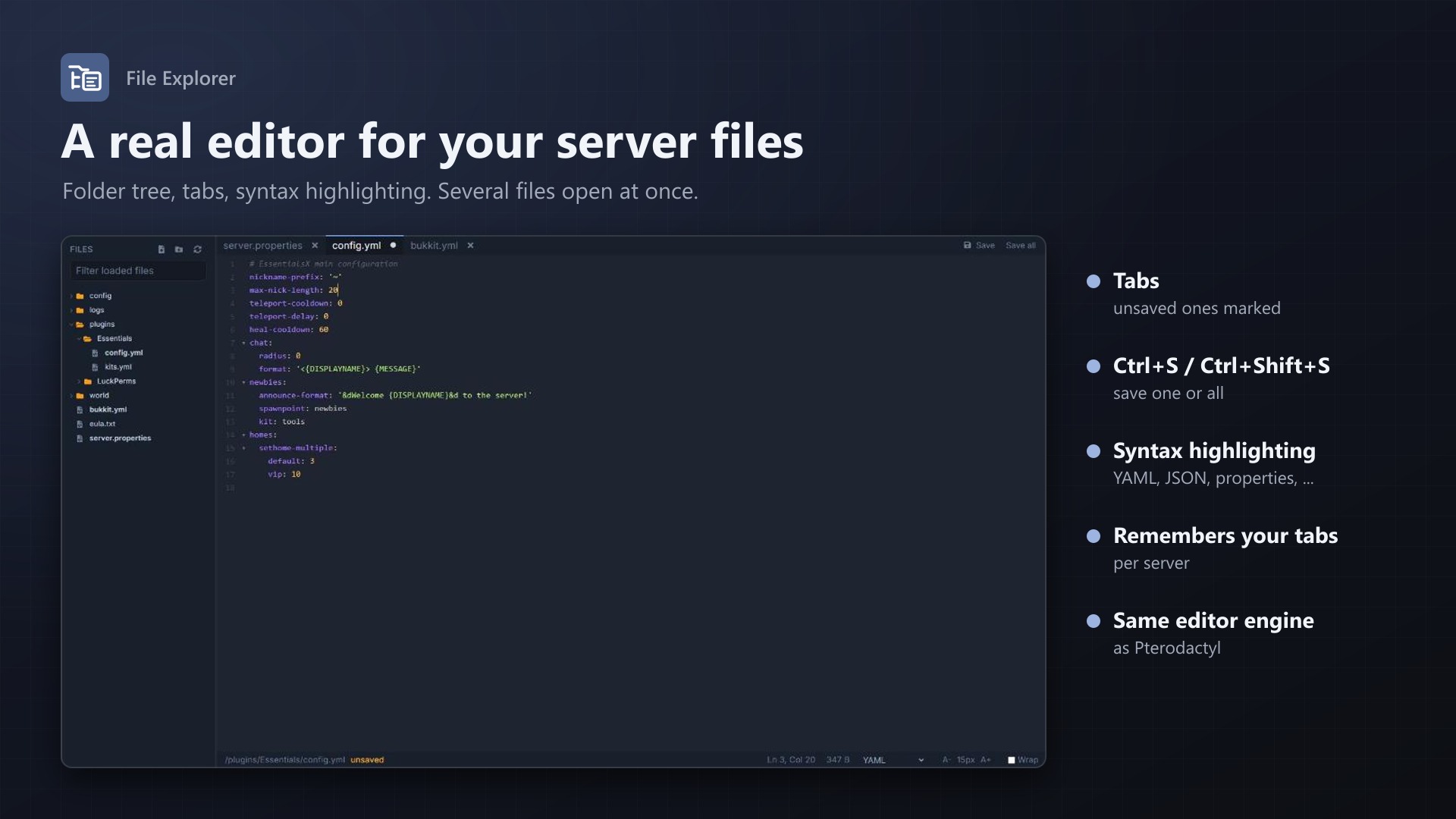
Pterodactyl's file manager shows one folder at a time and one file per page. File Explorer adds an "Explorer" page to every server with the folder tree on the left and your files in tabs on the right, like a code editor.
Editor
- Open several files at once in tabs, each with its own undo history and cursor
- Ctrl+S saves, Ctrl+Shift+S saves all, unsaved tabs are marked
- Asks before closing a tab or leaving the page with unsaved changes
- Syntax highlighting with Pterodactyl's own editor, language switch, font size, line wrapping
- Remembers the open tabs and expanded folders per server
Files
- Folder tree that loads as you expand it, with a filter
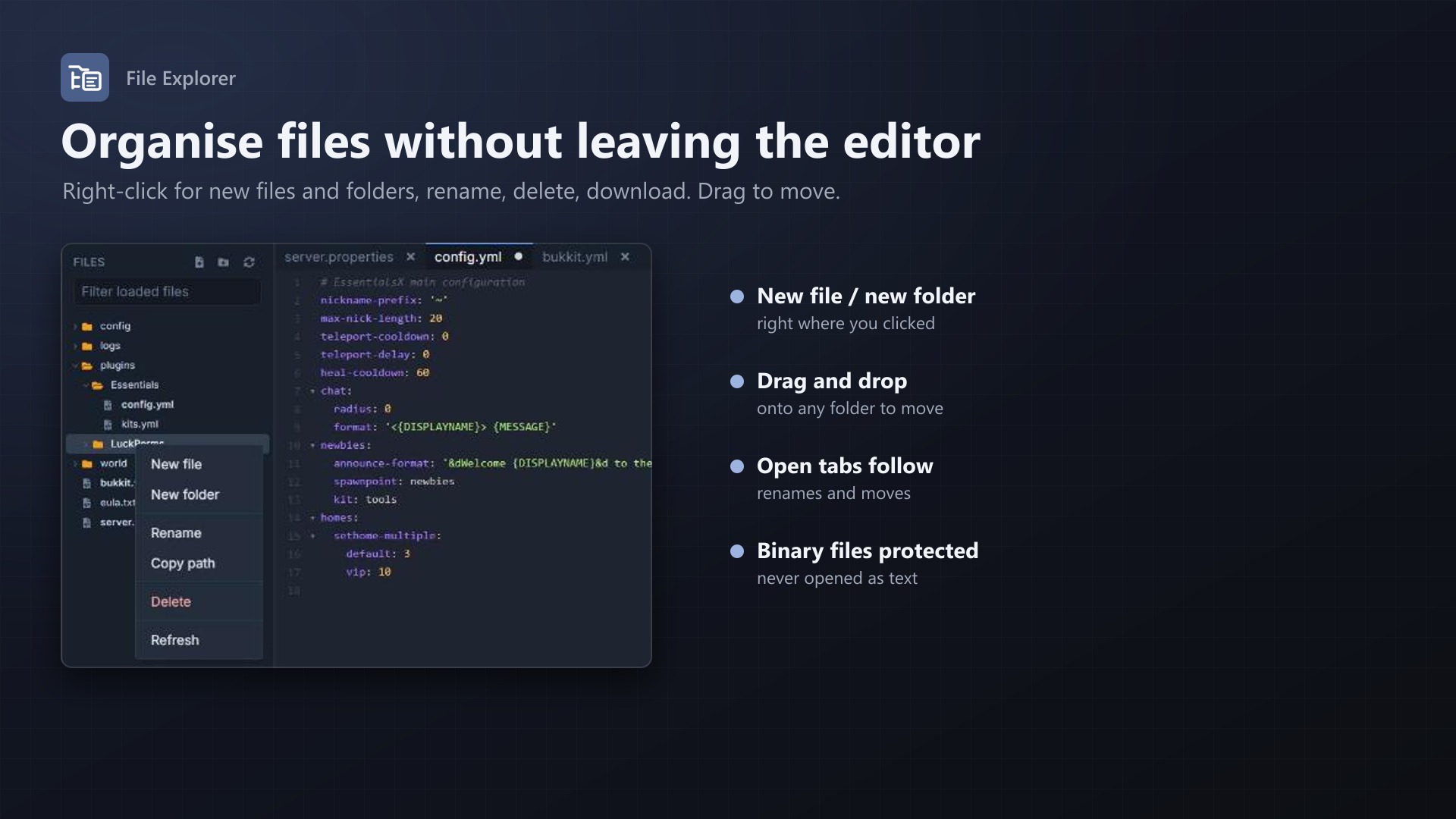
- Right-click: new file, new folder, rename, delete, copy path, download
- Drag and drop files and folders onto another folder to move them; open tabs follow
- Binary files (like SQLite databases) are detected and never opened as text
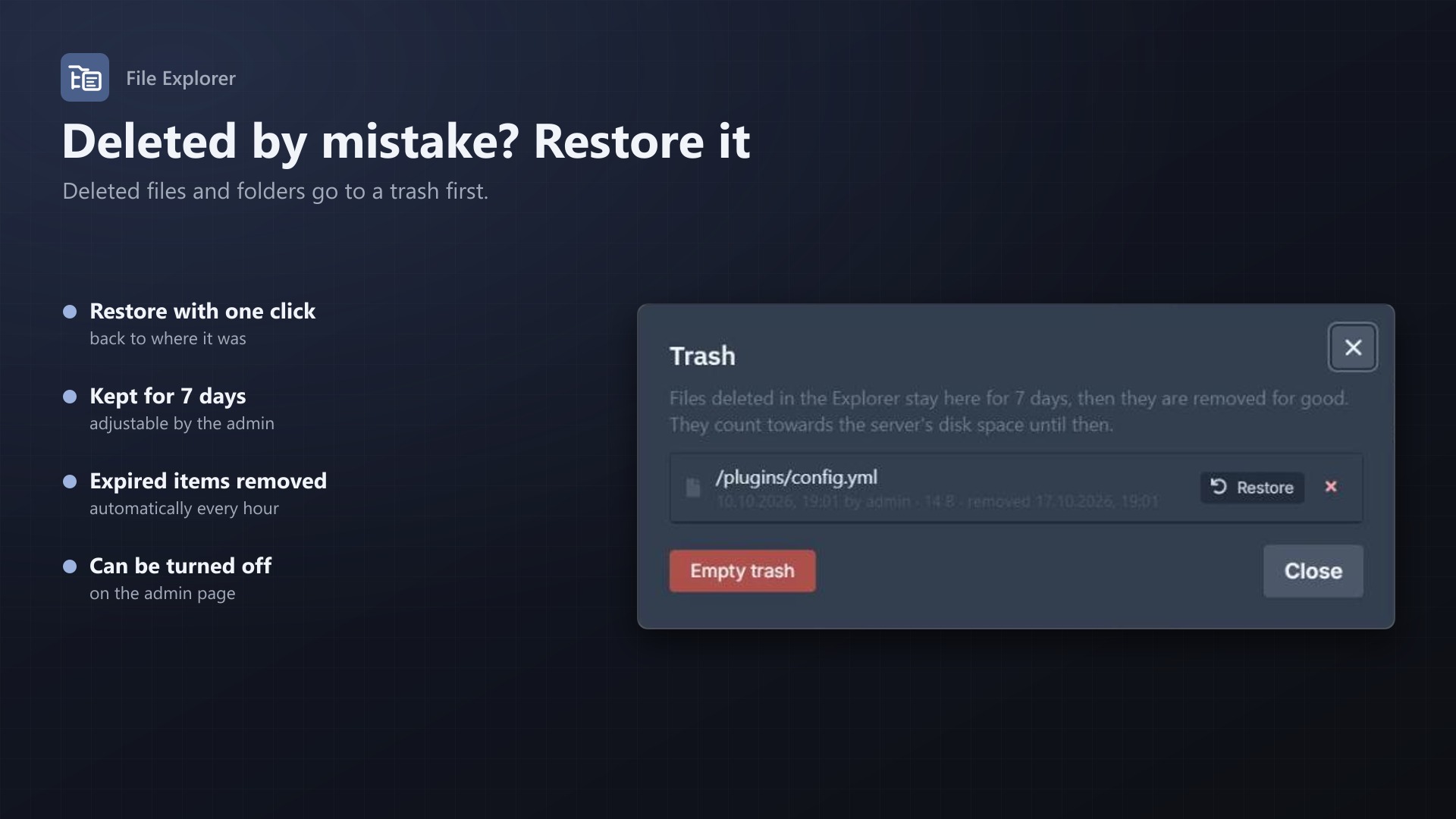
- Trash: deleted files and folders can be restored for 7 days (adjustable by the admin, can be turned off)
Safe
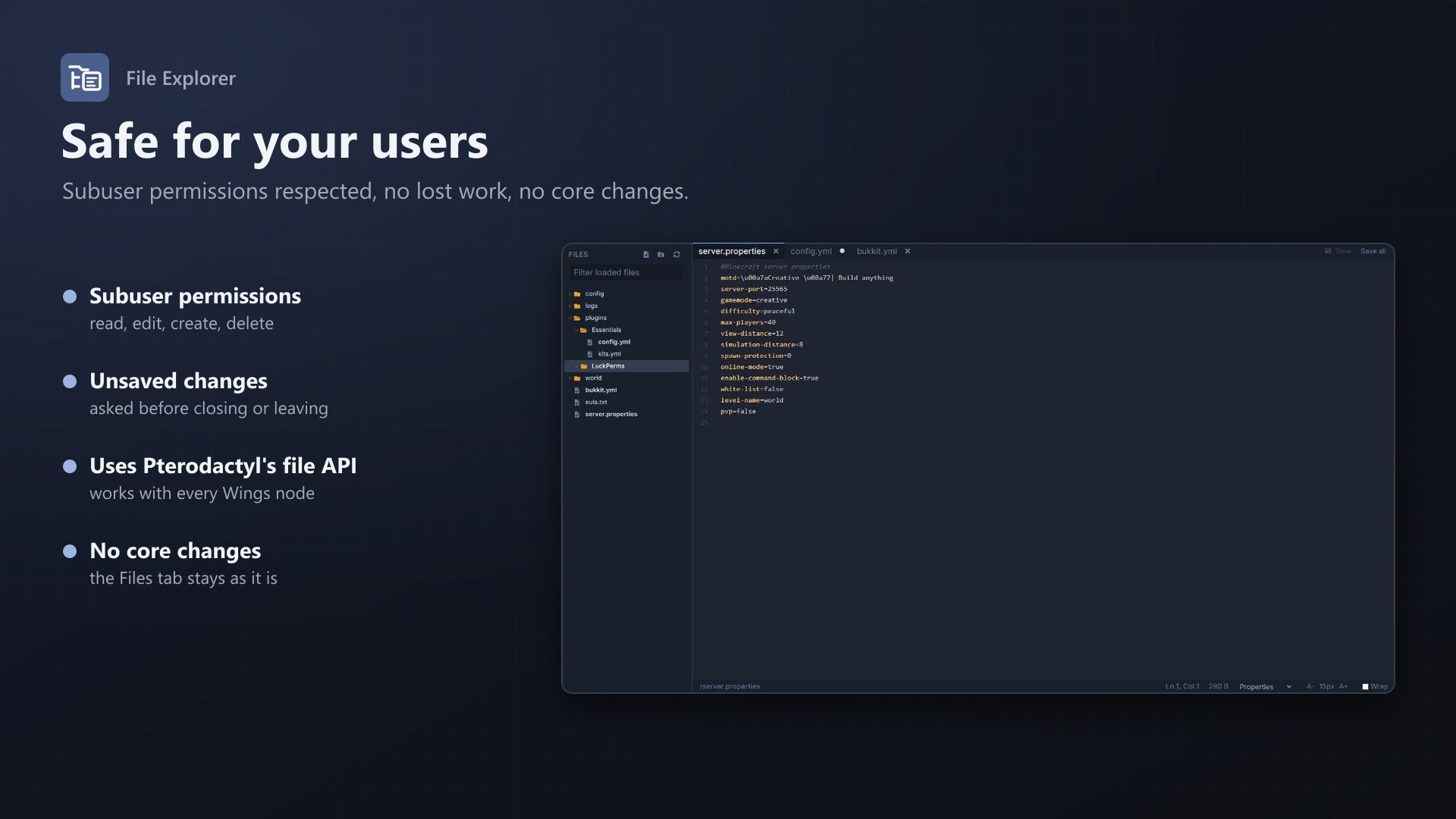
- Subuser file permissions respected (read, open, edit, create, delete); read-only editor without edit rights
- Uses Pterodactyl's file API, changes appear in the activity log as usual
- No core files modified, the built-in Files page stays as it is, nothing to configure
Documentation
A Blueprint extension that adds a file explorer with a folder tree and editor tabs to every Pterodactyl server. Open several configuration files at once, switch between them, save with Ctrl+S, and move files by drag and drop.
Pterodactyl's built-in file manager shows one folder at a time and opens one file per page. Editing a plugin's config while looking at another one means going back and forth. The Explorer keeps the folder tree on the left and the open files in tabs on the right, like a code editor.
Features
- Folder tree: folders load when you expand them, folders first, natural sorting. A filter field narrows down what is loaded.
- Editor tabs:
- Open as many files as you like
- Unsaved tabs are marked with a dot
- Middle-click closes a tab
- Each tab keeps its own undo history, cursor and scroll position
- Saving: <kbd>Ctrl</kbd>+<kbd>S</kbd> saves the open file, <kbd>Ctrl</kbd>+<kbd>Shift</kbd>+<kbd>S</kbd> all files, and there are buttons for both
- No lost work: closing a tab with unsaved changes asks first, and so does leaving the page
- Right-click menu:
- New file, new folder
- Rename
- Delete (into the trash)
- Copy path
- Download
- Refresh
- Trash: deleting moves files and folders into a trash instead of removing them. The trash button above the tree lists them with where they came from, who deleted them and when; restore them with one click or delete them for good. Items are removed automatically after 7 days (adjustable on the admin page). If a new file has taken the old place, the restored one gets "(restored ...)" in its name.
- Drag and drop: drag files or folders onto another folder to move them. Open tabs follow renames and moves.
- Syntax highlighting with the same editor (CodeMirror) and themes as Pterodactyl. The language is detected from the file name and can be changed in the status bar.
- Status bar: path, line and column, file size, language, font size, line wrapping
- Remembers per server the open tabs, expanded folders and tree width (in the browser)
- Binary files protected: files that turn out to be binary (for example SQLite databases) are not opened as text, so they can't be broken by saving
- Subuser permissions respected: | Action | Permission | |---|---| | See the tree |
file.read| | Open files |file.read-content| | Save, rename, move |file.update| | New files and folders |file.create| | Delete, empty the trash |file.delete| | Restore from the trash |file.create| Withoutfile.updatethe editor is read only. - Works through Pterodactyl's own file API, so it works with every node, and the server's activity log records changes as usual
- No core files are modified; the built-in Files page stays as it is
Requirements
- Pterodactyl Panel 1.15.x (tested on 1.15.1)
- Blueprint beta-2026-08 or newer
Installation
Upload fileexplorer.blueprint to your panel directory (normally /var/www/pterodactyl) and run:
cd /var/www/pterodactyl
blueprint -install fileexplorer
The installation rebuilds the panel's frontend, which takes a few minutes. Every server then has an Explorer page in its navigation. The only setting is the licence key on the admin page.
Limits
- Files above Pterodactyl's edit limit (
PTERODACTYL_FILES_MAX_EDIT_SIZE, 4 MB by default) can't be opened, only downloaded. - The filter searches the folders that are loaded (expanded) in the tree. Pterodactyl has no search over all files of a server.
- Uploading, compressing and permission changes stay on the built-in Files page.
- The trash only catches deletions in the Explorer. The built-in Files page deletes right away.
- Files in the trash stay in the server's hidden
/.trashfolder and count towards its disk limit until they expire. - If someone else changes a file while you have it open, saving overwrites their change. Reopen the tab to load the current version.
FAQ
Does it replace the Files page? No, it is an additional page. Uploads, archives and permissions are still done on the Files page.
Where are the open tabs stored? In the browser's local storage, per server. Nothing is stored on the panel. Unsaved changes are not kept when the page is closed; the page warns before that happens.
Does it work with themes? Yes. It uses Pterodactyl's own colours and components, so themes that change those change the Explorer as well.
Uninstall
blueprint -remove fileexplorerThe Explorer page disappears again. The extension keeps its licence key, the trash settings and the table fileexplorer_trash (the list of deleted items) on the panel; Blueprint leaves the table in place. Items still in a server's /.trash folder stay there; delete the folder on the Files page if you don't need them.
Support
Questions and bug reports through the support link on the product page.
Changelog
0.3.2 (2026-10-11)
- The update notice also works in the package from the licence site and the marketplaces; in the previous version it stayed hidden there.
0.3.1 (2026-10-11)
- Update notice: when a newer version is out, Admin > Extensions and the licence box on the admin page show it, with what is new. With the optional update helper (set up once as root), the update runs with one click after a backup of the panel files and the database.
0.3.0 (2026-10-10)
- Trash: deleting in the Explorer moves files and folders into a trash; restore them or delete them for good from the trash button above the tree. Retention is 7 days by default, adjustable on the admin page; expired items are removed hourly. The trash can be turned off.
- The hidden
/.trashfolder is not shown in the tree.
0.2.1 (2026-10-10)
- The licence box on the admin page explains that one purchase covers one panel (one domain and server; subdomains count as separate panels)
0.2.0 (2026-10-10)
- Licence check: the extension now needs a licence key, free with the purchase on sourceXchange. Get it on texus-addons.de, or download the extension there with the key built in.
- Licence box on the admin page
- The PHP code of the extension is obfuscated
Licence and download
One purchase = one licence = one panel. The licence is bound to one panel domain and the server it runs on. Subdomains count separately. You can move the licence at any time in your account.
After buying on sourceXchange or BuiltByBit, sign in here with your email address (BuiltByBit: redeem your activation code). You download the extension with the licence key built in, and every new version from your account.
Questions before buying? Ask on our Discord support server or at support@texus-addons.de.
Related
Schedules Plus
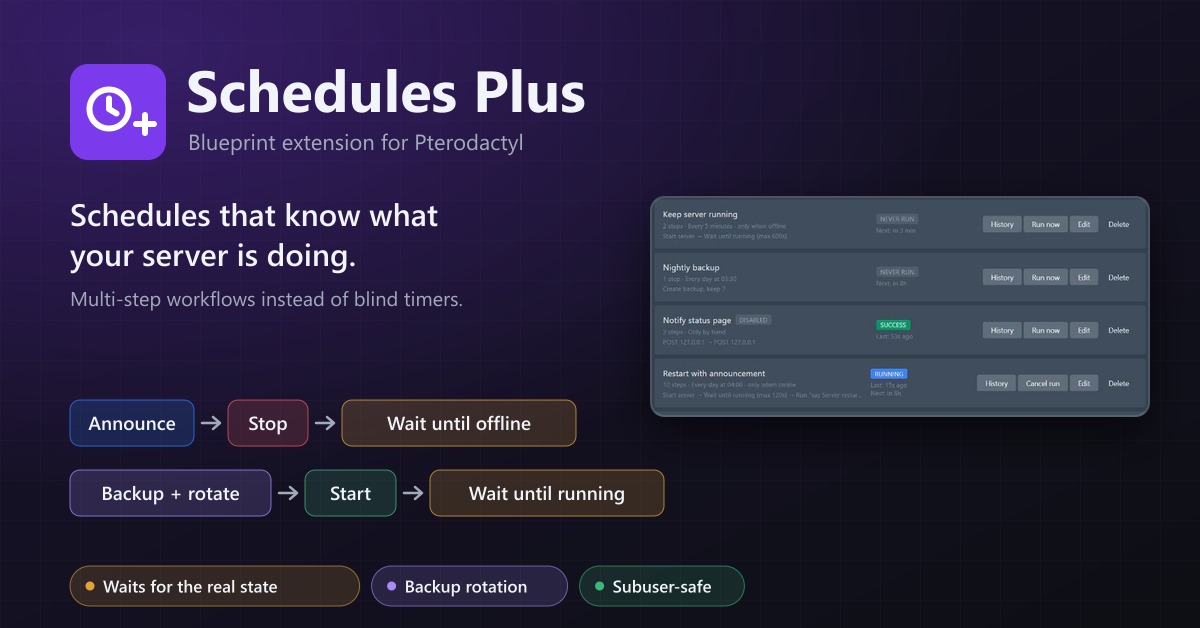
Multi-step server workflows that wait for the real server state: announce, stop, back up with rotation, start again.
Egg Store
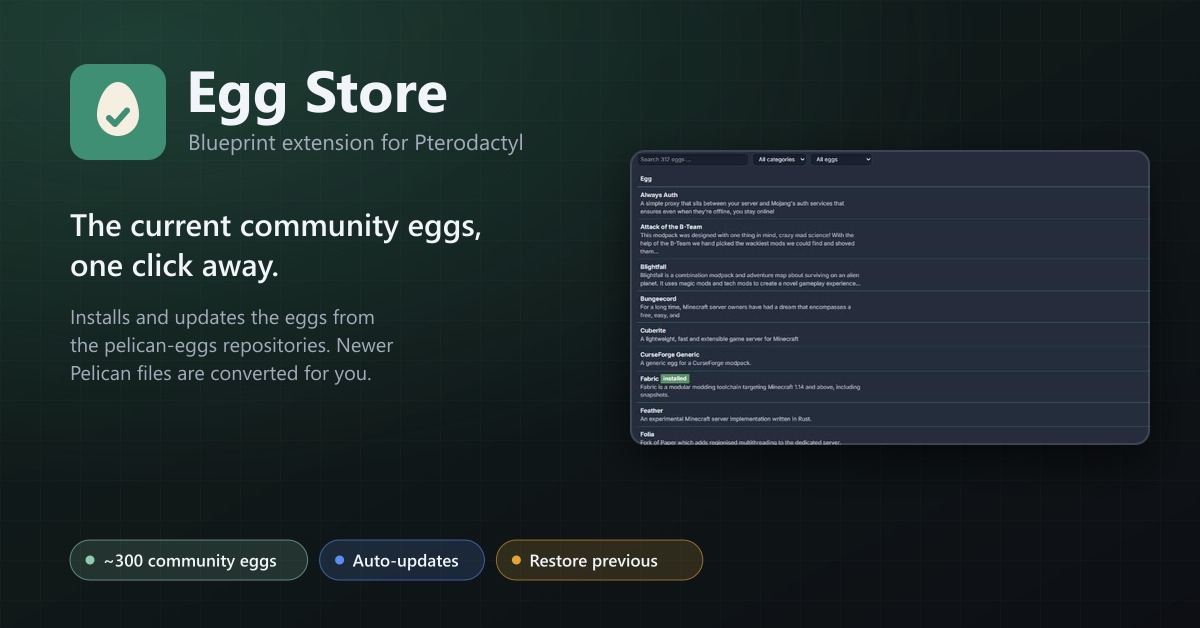
Install and update about 300 community eggs from the pelican-eggs repositories with one click. Pelican eggs are converted automatically.
SFTP Address
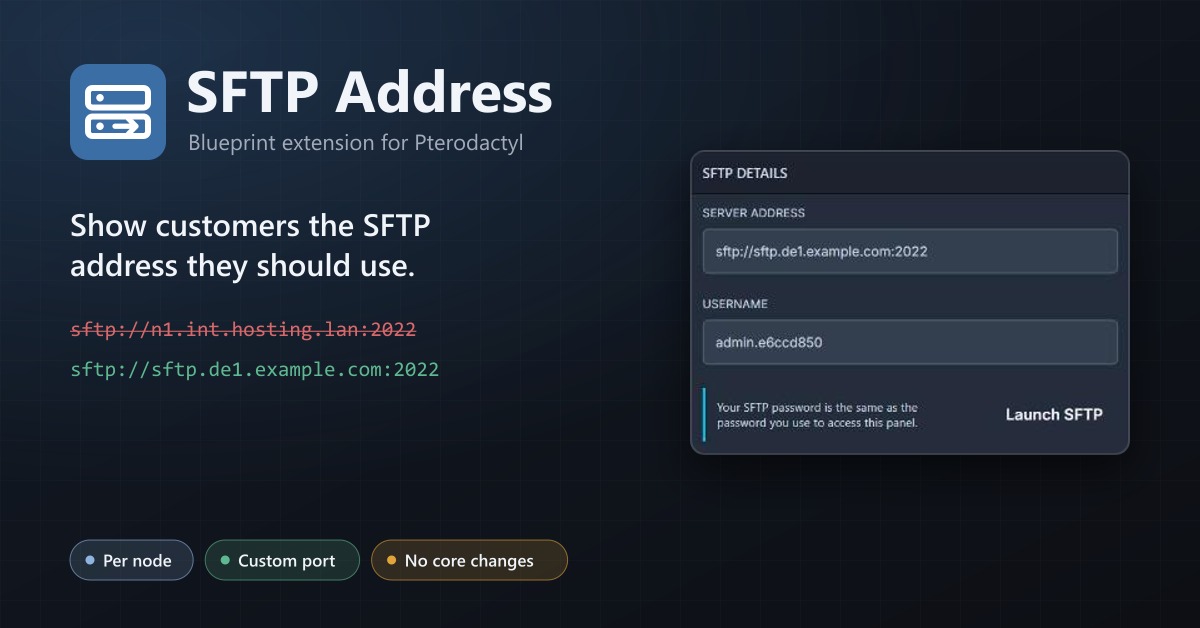
Show your users a public SFTP address per node, like sftp.de1.example.com, instead of the node's internal address.