 texus Addons und Themes
Discord Panel Bot
Discord slash commands for your servers, answered by the panel itself: status, power, console, backups and node alerts. No extra hosting.
14,99 €
- Version 0.1.2, updated 10 October 2026
- For Pterodactyl Panel 1.15.x with Blueprint
- No core files modified, installs and removes with Blueprint
- One licence for one panel, new versions included
Screenshots
Features
Most Discord bots for Pterodactyl are separate programs: you need another server, Node.js, a config file with an API key, and something that keeps the bot running. Discord Panel Bot runs inside your panel. Discord sends every slash command to the panel over HTTPS, the panel checks Discord's signature and answers. Nothing to host, nothing to keep alive.
For your users
- /link connects their Discord account: the bot sends a link, they sign in on the panel and confirm
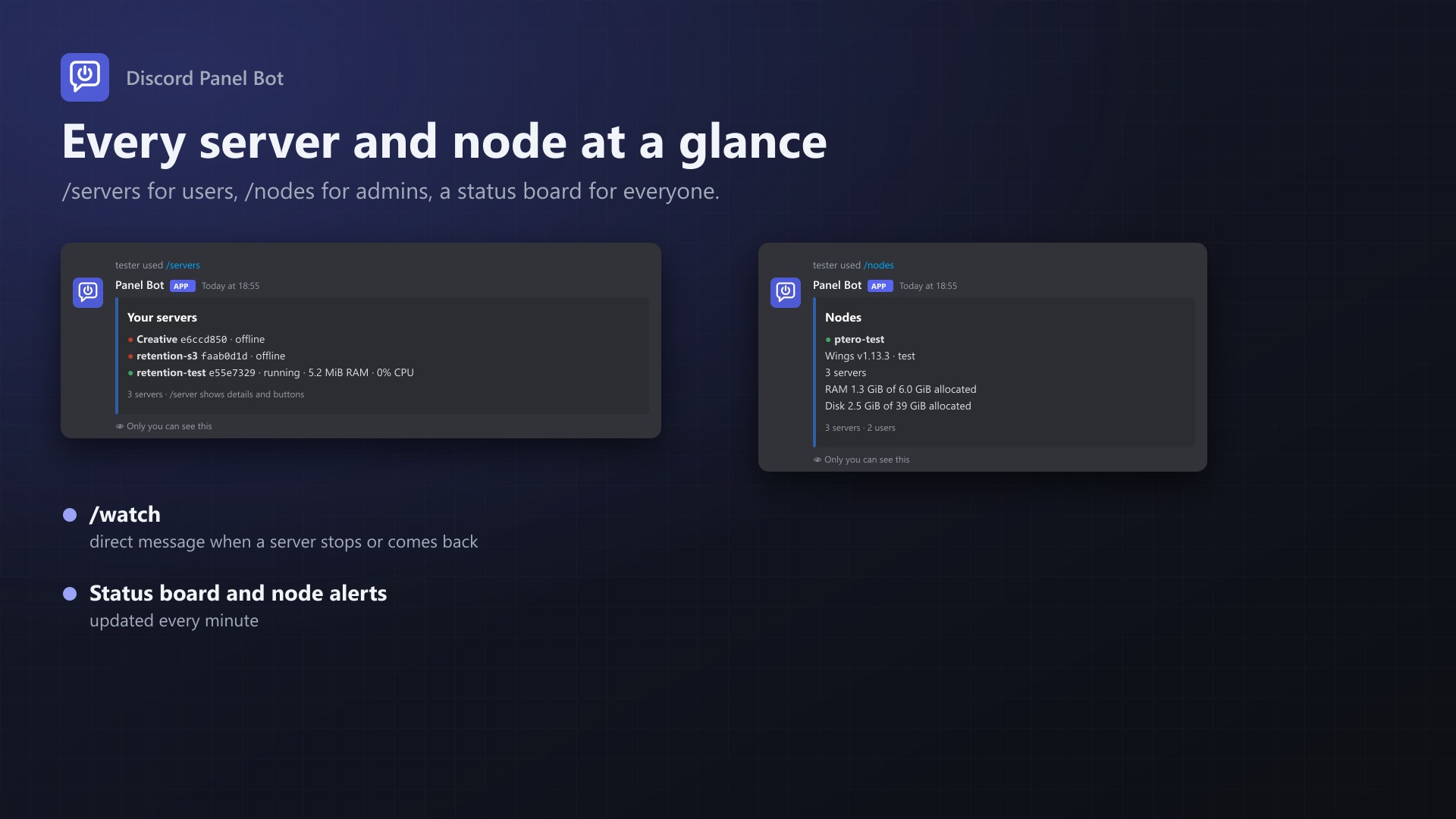
- /servers lists their servers with state, RAM and CPU
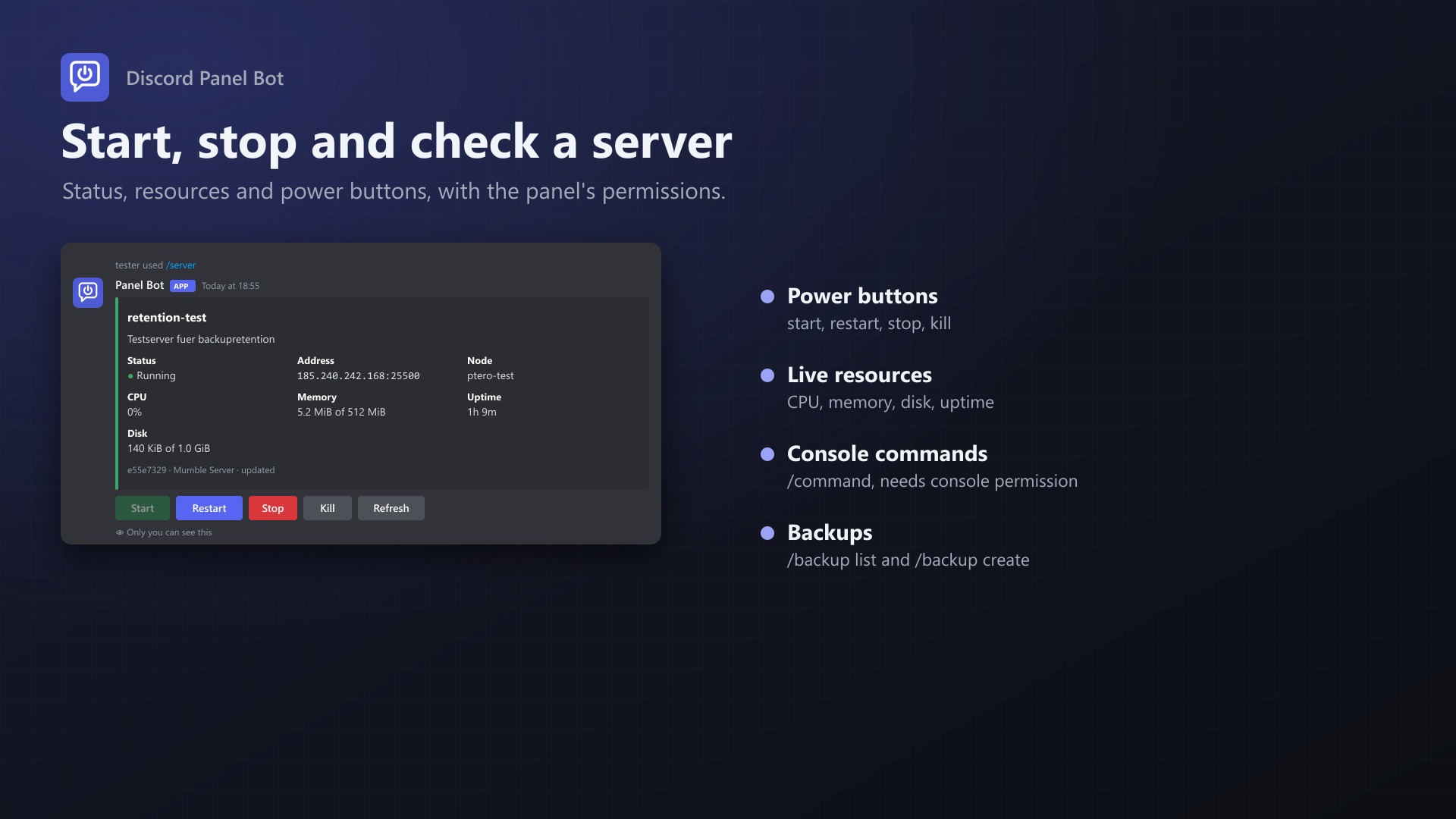
- /server shows one server: state, address, node, CPU, memory, disk, uptime, with Start, Restart, Stop, Kill and Refresh buttons
- /power start, restart, stop or kill
- /command sends a console command
- /backup list and /backup create
- /watch sends a direct message when a server stops, crashes or comes back
- Server names autocomplete while typing; answers are only visible to the user
For you
- Status board: one message in a channel, updated every minute, with your nodes and up to 25 servers (e.g. a public server status)
- Node alerts: a message to your team channel when Wings on a node stops answering, and when it's back
- /nodes: Wings status, servers and allocated RAM and disk per node
- Turn console commands or backups from Discord off, limit watches per user, see and disconnect linked accounts
Safe
- Every request is checked against your Discord application's public key; unsigned requests are refused
- The bot follows the panel's permissions: subusers can only do what their permissions allow, buttons only appear when they may press them
- Linking is confirmed on the panel, with links that work once and expire after 15 minutes
- Actions show up in the server's activity log, marked "via Discord"
- The bot token is stored encrypted; the bot only needs to view channels, send messages and embed links
- Server names are escaped, so nobody can ping @everyone with a server name
Setup
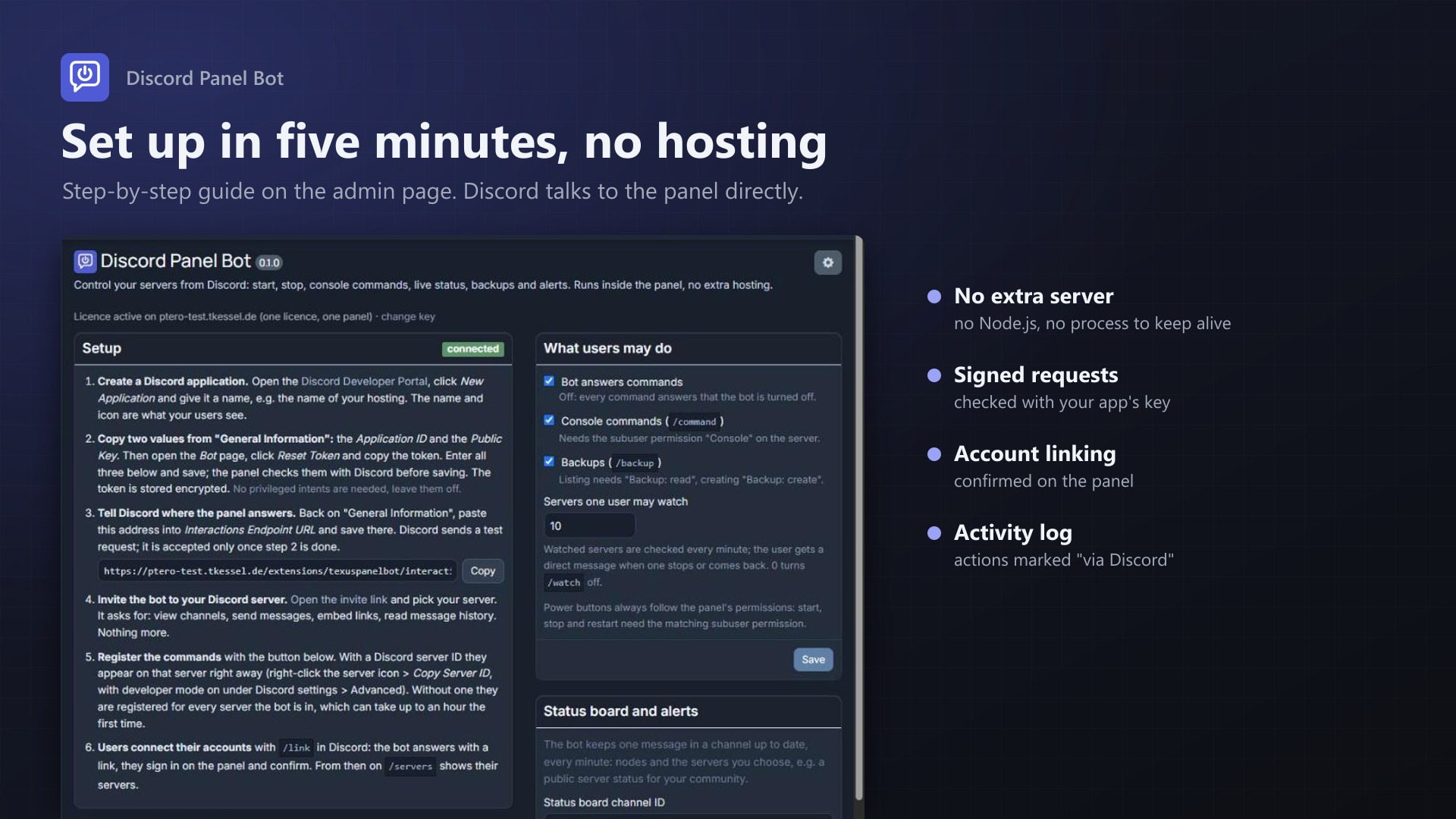
The admin page walks you through it: create a Discord application, paste three values, set the interactions URL, invite the bot, register the commands. About five minutes.
Documentation
A Blueprint extension that lets your users control their Pterodactyl servers from Discord: status, start and stop, console commands, backups, and a direct message when a server crashes. Admins get a node overview, alerts when a node goes down, and a status board that keeps itself up to date.
No extra hosting. Most Discord bots for Pterodactyl are separate programs that need their own server, Node.js and an API key in a config file. This one runs inside the panel: Discord sends every command to the panel over HTTPS, the panel checks the signature and answers. There is no process to keep alive and nothing to update apart from the extension.
What users can do
| Command | What it does | Panel permission needed |
|---|---|---|
/link | Connects the Discord account to the panel account (link → sign in → confirm) | – |
/servers | All servers of the user with state, RAM and CPU | – |
/server <server> | Card with state, address, node, CPU, memory, disk, uptime, and buttons for start, restart, stop, kill, refresh and "open panel" | – |
/power <server> <action> | Start, restart, stop or kill | Start / Stop / Restart |
/command <server> <command> | Sends a console command | Console |
/backup list <server> | The 10 latest backups with size and state | Backup: read |
/backup create <server> [name] | Starts a backup | Backup: create |
/watch <server> | Direct message when the server stops, crashes or comes back | – |
/unwatch <server> | Ends those messages | – |
/nodes | Admins: every node with Wings status, servers and allocated RAM and disk | Root admin |
/unlink | Disconnects the Discord account and removes its watches | – |
/help | The list above, as far as the user may use it | – |
- Server names autocomplete while typing, only the user's own servers are suggested.
- Answers are only visible to the user who ran the command.
- Buttons only appear when the user may press them; pressing one checks the permission again.
- The bot sees exactly what the user sees on the panel: own servers and servers they are a subuser of, with the subuser permissions set there.
- Power actions, console commands and backups appear in the server's activity log with "via Discord".
What admins get
- Status board: one message in a channel of your choice, updated every minute, with the nodes and up to 25 servers you choose (name, address, state, uptime). Good for a public "server status" channel.
- Node alerts: a message in a team channel when Wings on a node stops answering, and when it is back.
- Settings: turn console commands and backups from Discord off, limit how many servers one user may watch, or turn the bot off entirely.
- Connected accounts: see who connected which Discord account, and disconnect any of them.
Requirements
- Pterodactyl Panel 1.15.x (tested on 1.15.1)
- Blueprint beta-2026-08 or newer
- The panel reachable over HTTPS from the internet (Discord only sends commands to HTTPS)
- The panel's scheduler cron job (part of every Pterodactyl install) for the status board, node alerts and watch messages
- PHP with the sodium extension (included in PHP 7.2 and newer)
Installation
Upload texuspanelbot.blueprint to your panel directory (normally /var/www/pterodactyl) and run:
cd /var/www/pterodactyl
blueprint -install texuspanelbot
Then open Admin > Extensions > Discord Panel Bot. The page walks you through the setup:
- Create a Discord application in the Developer Portal (New Application). Its name and icon are what your users see.
- Enter the Application ID and Public Key (page General Information) and the bot token (page Bot, Reset Token). The panel checks them with Discord before saving; the token is stored encrypted with the panel's app key. No privileged intents are needed.
- Set the Interactions Endpoint URL on General Information to the address shown on the admin page, e.g.
https://panel.example.com/extensions/texuspanelbot/interactions. Discord tests it right away; it is accepted once step 2 is done. - Invite the bot with the link on the admin page. It only asks for: view channels, send messages, embed links, read message history.
- Register the commands. With your Discord server ID they appear there instantly; without one they are registered globally, which can take up to an hour the first time. Register again after turning console commands or backups on or off.
Users then type /link in Discord, open the link, sign in on the panel and confirm.
Security
- Every request from Discord is checked against your application's public key (Ed25519), and old timestamps are refused. Requests without a valid signature get "401 invalid request signature", as Discord requires.
- Linking needs the user to be signed in on the panel and to confirm. Links are random, work once and expire after 15 minutes. One Discord account belongs to one panel account.
- Every action checks the panel's own permissions at the moment it runs, including suspended servers and servers that are being installed or transferred.
- The bot token never leaves the server; it is stored encrypted and only sent to Discord.
- Names from users are escaped, so a server called
@everyonecan't ping anyone.
Troubleshooting
| Problem | Cause and fix |
|---|---|
| Discord says "The specified interactions endpoint url could not be verified" | Step 2 is not saved yet, or the panel is not reachable over HTTPS from the internet. Check that the address opens from outside your network. |
| Commands don't show up | Global registration can take up to an hour. Register them with your Discord server ID to have them right away. |
| "The application did not respond" | The panel took longer than 3 seconds. Usually a node that doesn't answer; /nodes shows which one. |
| Watch messages don't arrive | The user has direct messages from server members turned off, or shares no server with the bot. |
| Status board doesn't update | The panel's cron job (php artisan schedule:run every minute) is not running, or the bot can't post in that channel. "Test status channel" on the admin page shows which. |
Removing
blueprint -remove texuspanelbotRemove the Interactions Endpoint URL in the Developer Portal as well, or delete the application. Blueprint leaves the extension's tables (panelbot_links, panelbot_codes, panelbot_watches) in the database; drop them if you don't plan to reinstall.
Changelog
0.1.2 (2026-10-11)
- The update notice also works in the package from the licence site and the marketplaces; in the previous version it stayed hidden there.
0.1.1 (2026-10-11)
- Update notice: when a newer version is out, Admin > Extensions and the licence box on the admin page show it, with what is new. With the optional update helper (set up once as root), the update runs with one click after a backup of the panel files and the database.
0.1.0
- First release: slash commands for servers, status, power, console, backups and watches, node overview for admins, status board and node alerts, account linking through the panel.
Licence and download
One purchase = one licence = one panel. The licence is bound to one panel domain and the server it runs on. Subdomains count separately. You can move the licence at any time in your account.
After buying on sourceXchange or BuiltByBit, sign in here with your email address (BuiltByBit: redeem your activation code). You download the extension with the licence key built in, and every new version from your account.
Questions before buying? Ask on our Discord support server or at support@texus-addons.de.
Related
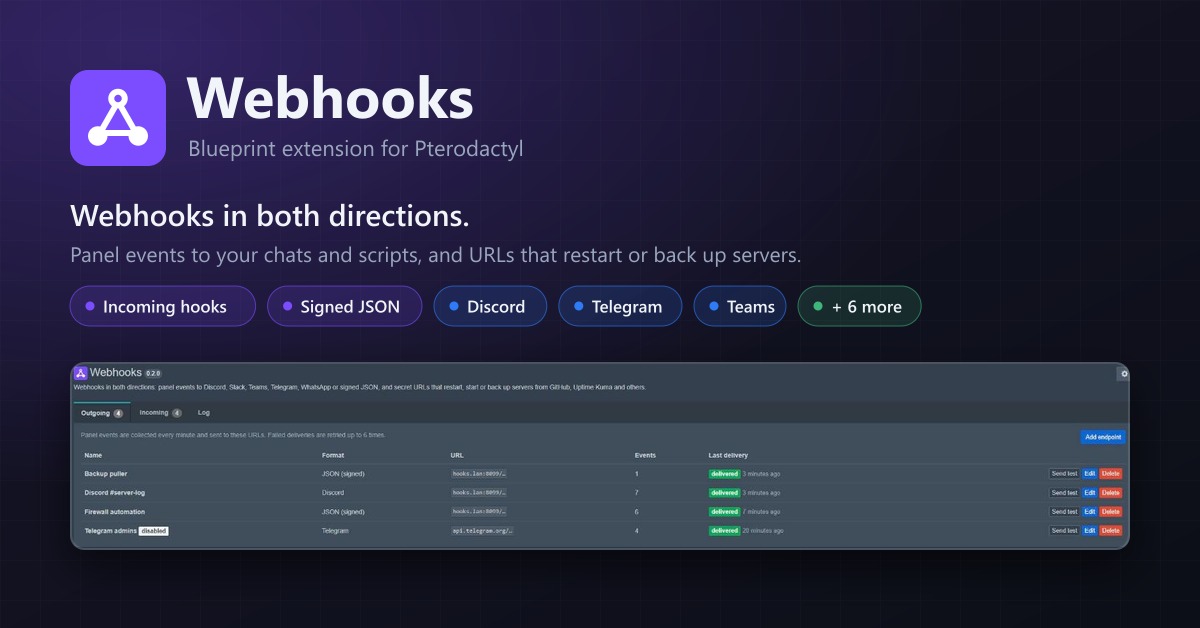
Webhooks
Webhooks in both directions: panel events to Discord, Telegram, Teams or JSON, and URLs that restart or back up servers.
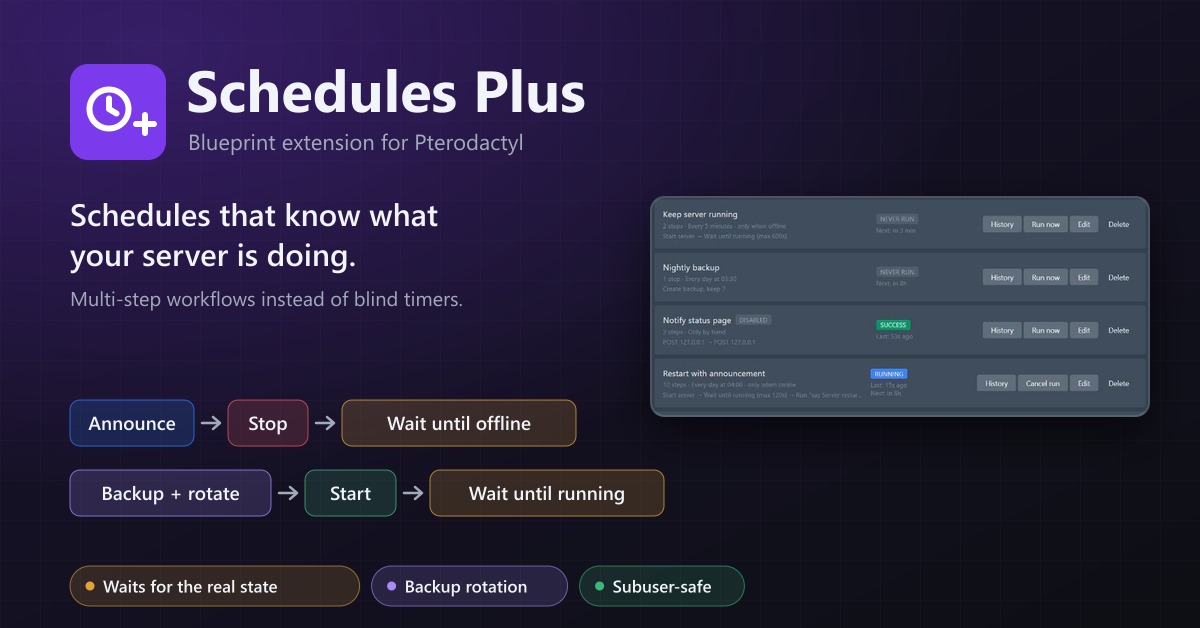
Schedules Plus
Multi-step server workflows that wait for the real server state: announce, stop, back up with rotation, start again.
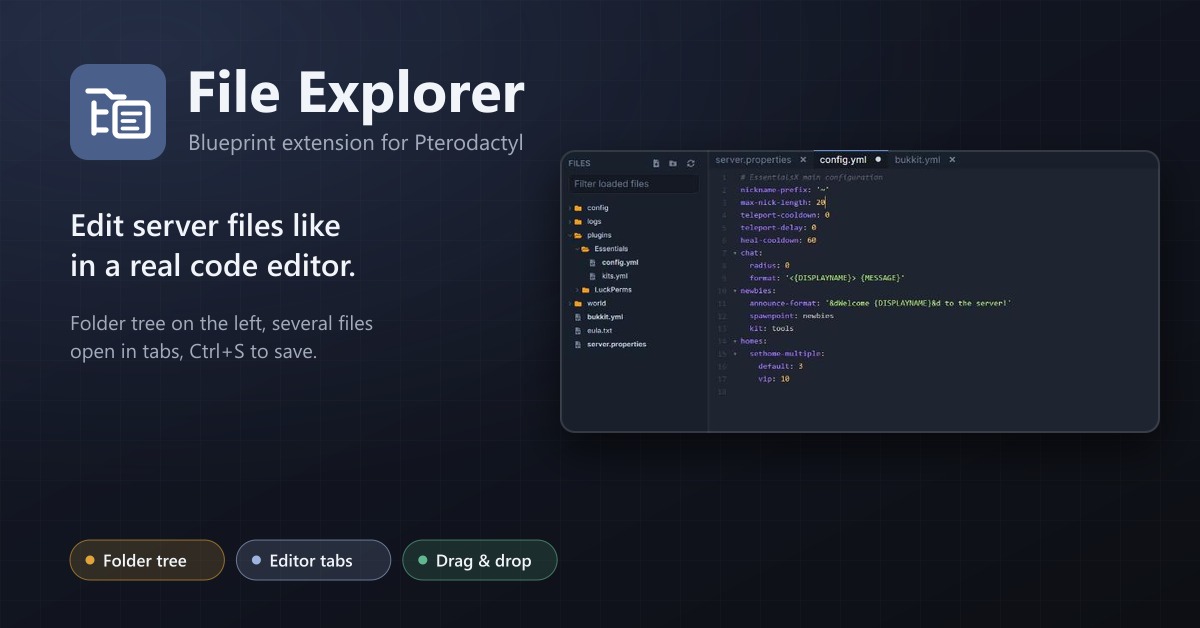
File Explorer
A file explorer with folder tree and editor tabs for every server: open several files at once, save with Ctrl+S, move by drag and drop.